





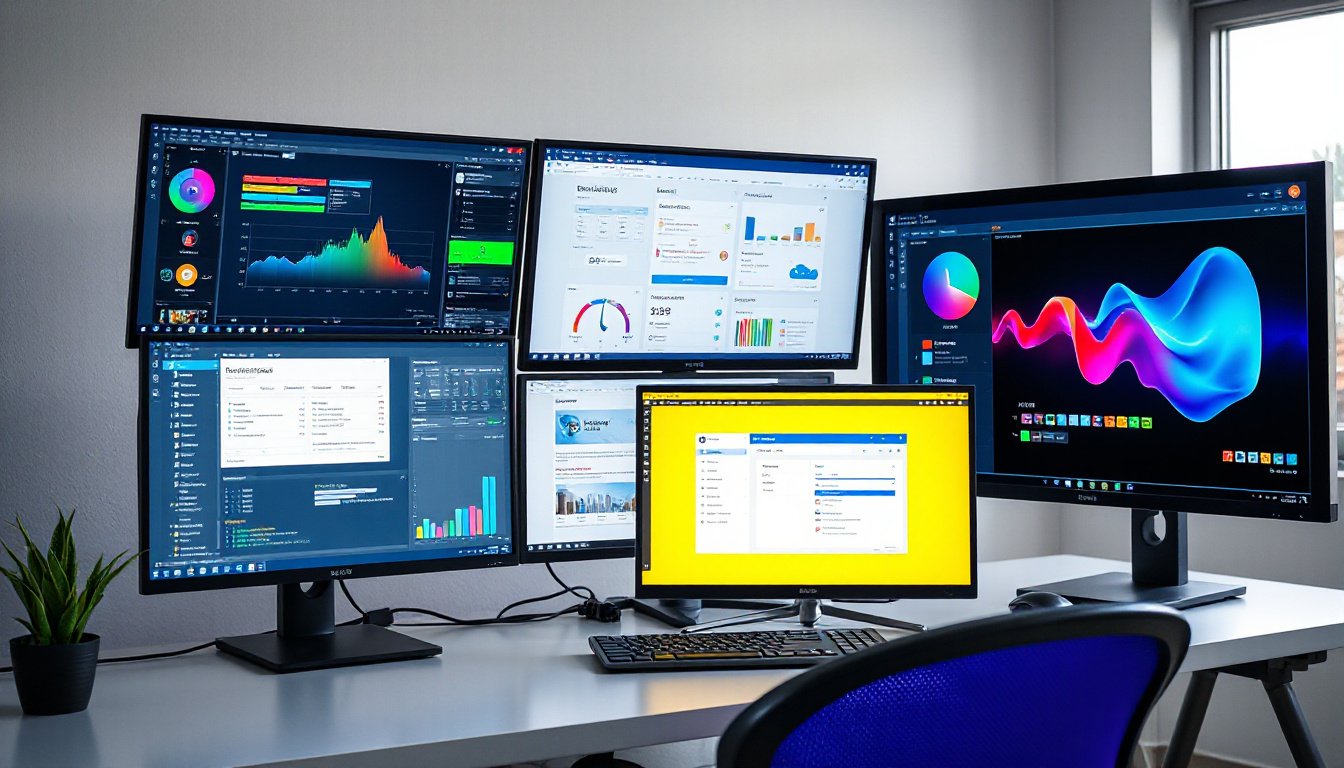
In today’s fast-paced and increasingly digital work environment, having the right tools to boost productivity is essential. One such tool gaining widespread recognition is multi-display capability — the use of multiple monitors connected to a single computer system. This setup can transform your workspace, offering enhanced efficiency, better multitasking, and a more immersive experience, whether you’re working in an office, creating digital content, or gaming. Let’s explore what multi-display capability is, how to set it up effectively, and why it’s a productivity game-changer.
What Is Multi-Display Capability?
Multi-display capability, also known as multi-monitor or multi-head configurations, refers to connecting two or more physical display devices — such as monitors, TVs, or projectors — to a single computer. Instead of limiting yourself to a single screen, you can extend your desktop across multiple screens or duplicate your content for varied viewing.
Research indicates that this setup can increase productivity by 50 to 70%, depending on the task, by providing more screen real estate to view applications simultaneously, reducing the need for constant switching between windows.
Benefits of a Multi-Display Setup
-
Enhanced Productivity: With multiple monitors, you can keep reference material, communication apps, and work documents open side-by-side, streamlining task management.
-
Improved Organization: Arrange windows in a way that mimics your workflow, from coding on one screen and debugging on another to keeping emails visible while working on reports.
-
Better Immersion in Creative Work and Gaming: Graphic designers, video editors, and gamers benefit from larger or more immersive environments that multi-display setups provide.
-
Reduced Eye Strain and Fatigue: Avoid excessive window switching, which can cause repetitive eye movement and distraction.
How to Set Up Multiple Monitors
Setting up a multi-display workspace isn’t complicated, especially on modern operating systems like Windows 10/11, macOS, or Linux distributions such as Ubuntu.
1. Connecting Your Monitors
-
Check Ports and Compatibility: Most monitors and PCs support connections via HDMI, DisplayPort, USB-C (with DisplayPort alternate mode), or Thunderbolt. For daisy chaining (connecting multiple monitors in series), DisplayPort 1.2+ with Multi-Stream Transport (MST) or Thunderbolt ports are essential.
-
Wired vs. Wireless: Connect monitors via the appropriate cables for best performance. Wireless display adapters are an option but may introduce lag and limited resolutions.
2. Daisy Chaining Monitors for a Cleaner Setup
Daisy chaining involves connecting the first monitor directly to the PC, then linking each subsequent monitor to the previous one via compatible ports such as DisplayPort MST or Thunderbolt. This reduces cable clutter and allows support of multiple displays through a single port.
Important Notes:
- HDMI does not support daisy chaining.
- Only the primary monitor in the chain needs to support DisplayPort MST.
- The maximum number of monitors depends on your graphics card, ports, and cable quality.

3. Configuring Display Settings
After physical setup:
-
Windows: Navigate to Settings > System > Display, where you can detect displays, identify them by number, rearrange their order for smooth cursor transition, and select display modes:
- Duplicate: Shows the same content on all displays.
- Extend: Expands your desktop across all monitors.
- Second Screen Only: Only the external monitor is active.
-
macOS: Use Apple Menu > System Settings > Displays to arrange and configure.
-
Linux (e.g., Ubuntu): Use Settings > Display for layout and preference settings.
4. Adjust Resolution and Orientation
You may want to adjust resolution and scaling to match each monitor’s specifications and your comfort. Portrait (vertical) orientation can be useful for reading long documents or coding.
Factors Impacting Multi-Display Performance
Several factors influence how effectively you can deploy multi-displays:
- Graphics Card Capability: Integrate GPUs are sufficient for typical productivity work, but discrete GPUs are needed for intensive applications like gaming or video editing.
- Operating System Support: Windows and Linux offer flexible support for multi-monitor extended modes. macOS supports daisy chaining primarily via Thunderbolt and may have limits based on Mac model.
- Cables and Ports: Use high-quality cables matching the port specifications to ensure reliability and optimum bandwidth.
- Display Resolution, Refresh Rate, and Color Depth: Higher values require more bandwidth, which can reduce the total number of monitors that can be chained.
Practical Applications of Multi-Display Setups
- Office and Professional Work: Increase multitasking efficiency, monitor communications, and run software requiring multiple windows such as spreadsheets, CAD, or video editing tools.
- Creative and Design Fields: Use one screen for editing and another for full preview or tool palettes.
- Financial Trading: Professionals often use multi-monitor setups to monitor market data and trading platforms simultaneously.
- Gaming: Multi-monitor arrangements create broader or more immersive views, as in flight simulators or strategy games.
Troubleshooting Tips
If you encounter issues such as displays not detected or flickering:
- Ensure cables are securely and properly connected.
- Update graphic card drivers.
- Check your graphics card can support the number and resolution of connected monitors.
- Power cycle your computer and monitors.
Conclusion
Multi-display capability unlocks a new level of productivity by expanding your digital workspace and allowing for better organization and multitasking. Whether enhanced with daisy chaining to reduce cable clutter or optimized through resolution and orientation tweaks, multi-monitor setups cater to a variety of professional and personal uses. By understanding the components and setup involved, you can harness the power of multiple displays to create a more efficient and enjoyable computing environment.
References:
- Microsoft Support: How to use multiple monitors in Windows
- Wikipedia: Multi-monitor
- Dell Support: How to Daisy Chain Monitors for a Multi-Display Setup