





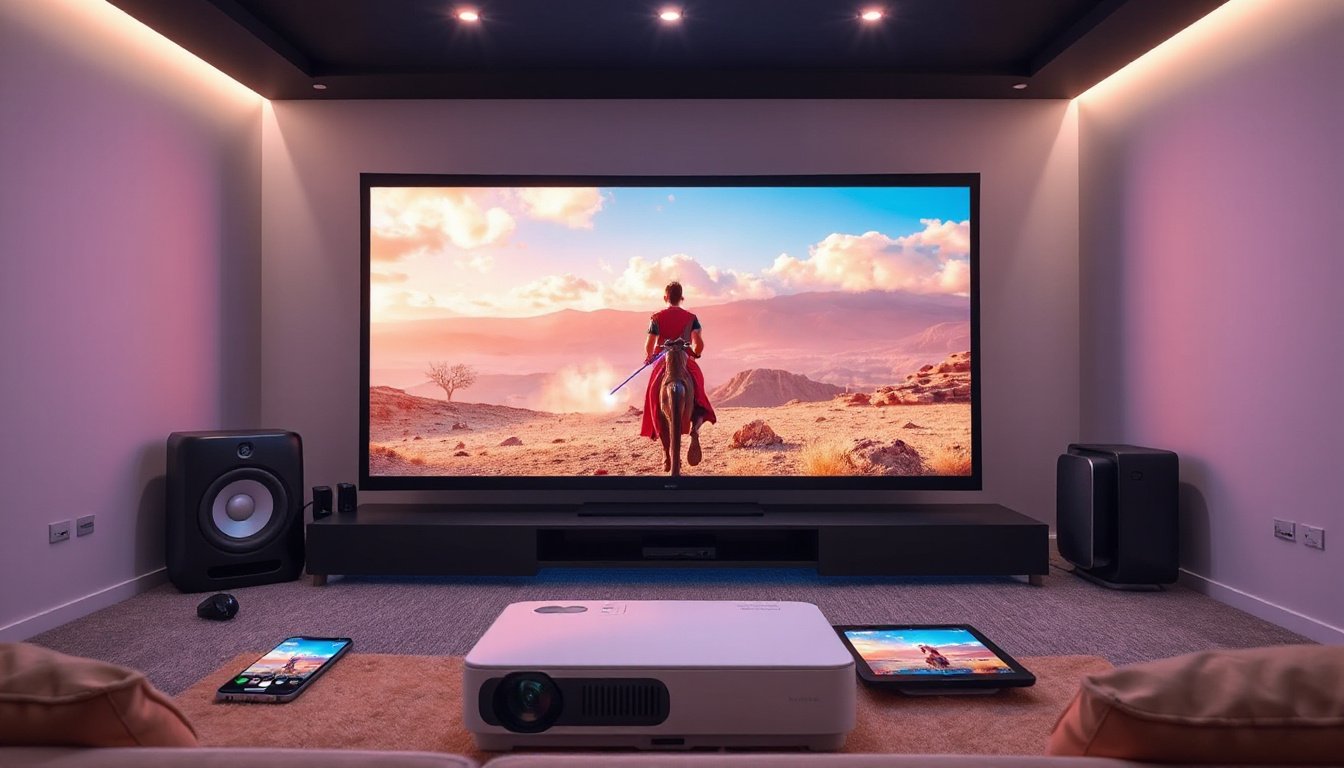
In today’s world, projectors have evolved far beyond the traditional bulky devices used solely for presentations. With the advent of smart projectors and the ubiquity of smart devices such as smartphones, tablets, and laptops, projecting content wirelessly or via cables has become a seamless way to enjoy multimedia, conduct meetings, or elevate gaming experiences. This guide delves into the methods of using projectors with smart devices, exploring wireless and wired connections, setup processes, advantages, limitations, and practical usage scenarios to help you get the most from your viewing experience.
Understanding Connection Methods: Wired vs. Wireless
When connecting projectors to your smart devices, two main types of connections dominate the landscape: wired and wireless. Each offers unique benefits and suits different uses depending on the environment and purpose.
Wired Connections: Stability and Performance
Wired connections utilize physical cables to transmit audio and video signals from your device to the projector. The most common interfaces include:
-
HDMI (High-Definition Multimedia Interface): The current industry standard, HDMI cables carry both high-definition video and multi-channel audio. They support resolutions from 1080p up to 4K, delivering vibrant and clear visuals combined with audio. HDMI’s compatibility makes it ideal for connecting laptops, gaming consoles (e.g., Xbox, PlayStation), and media players.
-
VGA (Video Graphics Array): An older analog interface primarily transferring video signals. While it can still be found in some setups, VGA provides lower image clarity and does not support audio transmission.
-
USB: More versatile, USB ports on projectors can facilitate file playback from USB drives or connect certain devices. Some projectors also use USB-C for video output from newer smartphones and laptops.
Advantages of Wired Connections:
- Exceptional Stability: Physical cables safeguard against interruptions and interference, ensuring smooth streaming without lag or stutter.
- Low Latency: Crucial for gaming or live presentations, wired connections often provide minimal delay (sometimes as low as 1ms), enhancing real-time interaction.
- High-Quality Output: Supports high-resolution content with consistent performance.
Limitations:
- Reduced Flexibility: The necessity of cables restricts movement and setup options.
- Cable Management: Can become cumbersome, especially in mobile or multi-room use.
Ideal Usage:
Wired connections are excellent for fixed installations, such as dedicated home theaters, offices, or conference rooms where stable, high-quality projection is paramount.

Wireless Connections: Convenience and Flexibility
Wireless projection eliminates the need for physical cables, using Wi-Fi, Bluetooth, or proprietary protocols to stream content from your smart device to the projector.
Common Wireless Technologies and Protocols:
- Miracast: Popular on many Android devices, Miracast enables screen mirroring between devices even if they are from different manufacturers.
- AirPlay: Apple’s proprietary protocol allows seamless streaming and mirroring from iPhones, iPads, and Macs to compatible projectors.
- DLNA: Focuses on multimedia sharing such as videos, music, and images across devices on the same network.
- Bluetooth: Often used for connecting audio peripherals like wireless speakers rather than for video streaming.
Advantages of Wireless Connections:
- Mobility and Convenience: Freedom to move your device around without cable restrictions.
- Quick Setup: Usually requires just enabling wireless projection or mirroring and pairing devices.
- Device Versatility: Supports connection among a range of devices, regardless of port types.
Limitations:
- Potential Instability: Wireless signals can be affected by network congestion or weak Wi-Fi signals, causing lag, stuttering, or disconnections.
- Latency Issues: Less suitable for fast-paced gaming or scenarios demanding real-time responsiveness.
- DRM Restrictions: Some platforms may block wireless projection due to Digital Rights Management protocols, limiting content sharing.
Ideal Usage:
Wireless projection excels in casual home entertainment, outdoor movie nights, family photo sharing, and quick business huddle sessions where setup speed and ease matter most.
How to Connect Your Smart Device to a Projector
Connecting an Android Phone via Miracast
For Android users, Miracast — often branded as “Smart View” or “Screen Cast” — is a handy tool.
Steps:
- On the projector, use the remote to navigate to the wireless settings and enable Miracast.
- On your Android phone, pull down the notification shade and tap the "Smart View" or "Cast" option.
- Your phone will scan for nearby compatible devices; select your projector once it appears.
- Wait for a connection to establish, typically taking 30–40 seconds.
- Once connected, your phone’s screen will mirror on the projector in real time.
This method provides an easy way to share streaming content, slideshows, or apps without physical cables.
Setting Up Wired Connections for Laptops or Gaming Consoles
- Use an HDMI cable to connect your laptop or console directly to the HDMI input on your projector.
- Switch the projector input source to the corresponding HDMI port.
- On your device, ensure the display is set to output to the projector (this is usually automatic but can be adjusted in display settings).
- Enjoy immediate, high-quality projection with low latency.
Leveraging Smart Projectors for Business and Productivity
Modern smart projectors often run on Android-based platforms and include built-in apps, internet connectivity, and support wireless projection over various protocols. Products like BenQ’s business projectors enhance presentation experiences with capabilities such as:
- Wireless mirroring from Mac/iOS, Android, and PC devices.
- Hotspot mode to project even in environments without Wi-Fi.
- Simultaneous Bluetooth connections to wireless speakers.
- USB port support for displaying offline files.
- Integration with conferencing and collaboration apps.
These features streamline meetings, collaborative sessions, and remote communications, making projectors versatile tools beyond just media playback.
Choosing the Right Connection Method for Your Needs
To decide between wired or wireless connections, consider:
- Environment: Fixed home theaters or conference rooms favor wired setups for reliability; casual home use or changing locations benefit from wireless freedom.
- Content Type: High-resolution, low-latency needs like gaming or professional presentations suit wired connections.
- Device Compatibility: Wireless protocols simplify connecting diverse devices but may face compatibility quirks.
- Mobility: Outdoor events or dynamic meetings prefer wireless to avoid cable hassles.
Often, having both options available ensures maximum versatility.
Conclusion
Using projectors with smart devices opens a wide array of possibilities for entertainment, work, and social interactions. Whether opting for the rock-solid reliability of wired connections or the unparalleled freedom of wireless projection, understanding the strengths and limitations of each method empowers you to create engaging, high-quality viewing experiences tailored to your unique needs. By mastering connection setups and utilizing modern smart projector features, you can easily transform any space into a dynamic theater, collaborative workspace, or immersive gaming hub.