





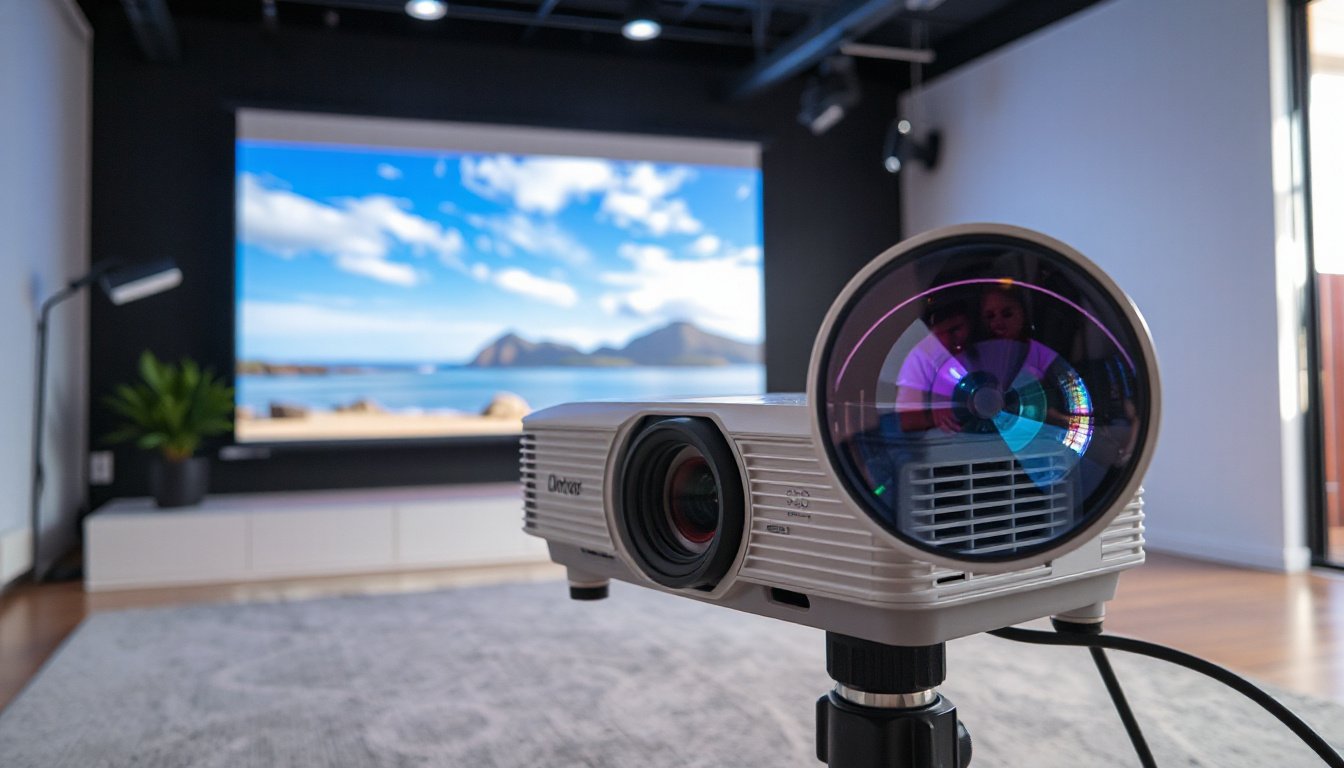
When setting up a projector, one common issue users face is image distortion, where a square or rectangular image appears trapezoidal or skewed. This undesired effect, known as the keystone effect, occurs when the projector is not perfectly aligned perpendicular to the screen. Luckily, keystone correction technology allows for the adjustment of such distortions, restoring the image to its intended rectangular shape. This article will guide you through understanding keystone distortion, its causes, and how mastering keystone correction helps achieve flawless, crystal-clear projections.
Understanding Keystone Distortion
The keystone effect happens because of the angle at which a projector beams its image onto the projection surface. Instead of projecting straight on, when the projector is tilted upward or downward, or offset horizontally, the image becomes distorted — typically wider at the top or bottom, mimicking the shape of an architectural keystone stone.
For instance, a projector placed on a table that shoots the image upward toward a screen mounted higher will produce a trapezoidal image rather than a perfect rectangle. The distortion causes not only aesthetic issues but can also affect viewing comfort and image clarity.
Causes of Keystone Distortion
- Projector angle: The main cause is when the projector’s lens axis is not perpendicular to the screen.
- Vertical misalignment: The projector might be placed too high or low relative to the screen’s center.
- Horizontal offset: The projector is positioned off-center to the left or right.
- Lens and focus constraints: Focus issues arise because projector lenses focus light optimally at a specific distance, causing edges to blur if the angle skews the path significantly.
What is Keystone Correction?
Keystone correction is a built-in projector function designed to adjust the distorted image digitally or optically, allowing the trapezoidal image to be reshaped into a perfect rectangle. This correction compensates for angles in both vertical and horizontal directions, enabling versatile projector placement without sacrificing image geometry.
- Vertical keystone correction adjusts images distorted from an up or down angle.
- Horizontal keystone correction fixes the image when positioned at a side angle (more common in professional or higher-end projectors).
How Does Keystone Correction Work?
Modern projectors use digital methods to correct image shape by manipulating pixels before they reach the projection lens. This is typically done via the projector’s internal LCD panels or DLP mirrors. When keystone correction is applied:
- The projector digitally distorts the image in the opposite direction of the keystone distortion.
- Pixels are shifted or resized to make the trapezoidal image rectangular on the screen.

However, this digital correction may slightly reduce image resolution and sharpness because some pixel data is essentially "stretched" or "compressed" to achieve the corrected shape.
Step-by-Step Guide to Mastering Keystone Correction
1. Position Your Projector Correctly
- Aim for perpendicular placement to the screen surface.
- Adjust height and distance to align the lens with the screen’s center to minimize the need for correction.
- Use adjustable mounts for fine-tuning placement.
2. Activate Keystone Correction
- Access your projector’s menu system (often under Image or Display Settings).
- Enable manual or automatic keystone correction.
- Use remote or onboard buttons to initiate the correction mode.
3. Adjust Vertical and Horizontal Settings
- Use small incremental changes for vertical and horizontal correction.
- Prefer minimal keystone adjustment to preserve image quality.
- If horizontal correction is not available, consider physically moving the projector.
4. Fine-Tune for Clarity
- Use built-in test patterns or grid overlays to assess image shape.
- Make slight adjustments to eliminate skewed edges or corners.
- Prioritize physical repositioning if more significant corrections are needed.
5. Verify Final Image Quality
- Inspect the image carefully, ensuring straight lines and right angles.
- Check for uniform sharpness especially at screen edges.
- Repeat adjustments if necessary to optimize viewing experience.
Tips for Best Results with Keystone Correction
- Limit keystone correction usage: Excessive digital correction reduces sharpness.
- Prefer physical alignment: Adjust the projector’s position before relying on software correction.
- Use quality projectors: Many high-end projectors offer lens-shift options and better correction features.
- Regular maintenance: Clean projector lenses and keep firmware updated to maintain image fidelity.
Conclusion
Keystone correction is an invaluable tool that enables flexibility in projector placement, allowing devices to produce perfect rectangular images even when positioned at an angle. However, mastering the technique involves combining thoughtful physical setup with judicious use of keystone correction features. By positioning your projector carefully and applying minimal digital correction, you can effectively eliminate image distortion, thereby enjoying clear, crisp projections every time.
Whether setting up a home theater, an office presentation, or a classroom display, understanding and mastering keystone correction ensures your visuals maintain their intended clarity and professional appeal—say goodbye to image distortion for good!
Master your keystone correction skills and transform your projections from distorted to dazzling with these proven techniques.