





In today’s digital age, visual clarity is paramount, whether you are gaming, designing, watching videos, or simply browsing the web. At the core of an optimal viewing experience lies an important technical concept known as native resolution. Understanding native resolution is key to unlocking the full potential of any display device, from monitors and TVs to smartphones and VR headsets.
What Is Native Resolution?
Native resolution refers to the fixed number of physical pixels on a display device, such as an LCD, LED, or OLED panel. Unlike older CRT monitors that could dynamically display multiple resolutions, flat-panel displays have a set grid of pixels. This pixel grid constitutes the display’s native resolution, which cannot be changed because it is hardwired into the screen’s physical structure.
For example, a monitor with a native resolution of 1920×1080 pixels (Full HD) has exactly 1920 pixels horizontally and 1080 pixels vertically. This means the screen is designed to display images, videos, and text with these pixel dimensions for the sharpest and most accurate output.
Using a resolution in line with the native resolution means every pixel in the input image corresponds exactly to one pixel on the display, often called “pixel perfect”.

Why Native Resolution Matters
Image Sharpness and Clarity
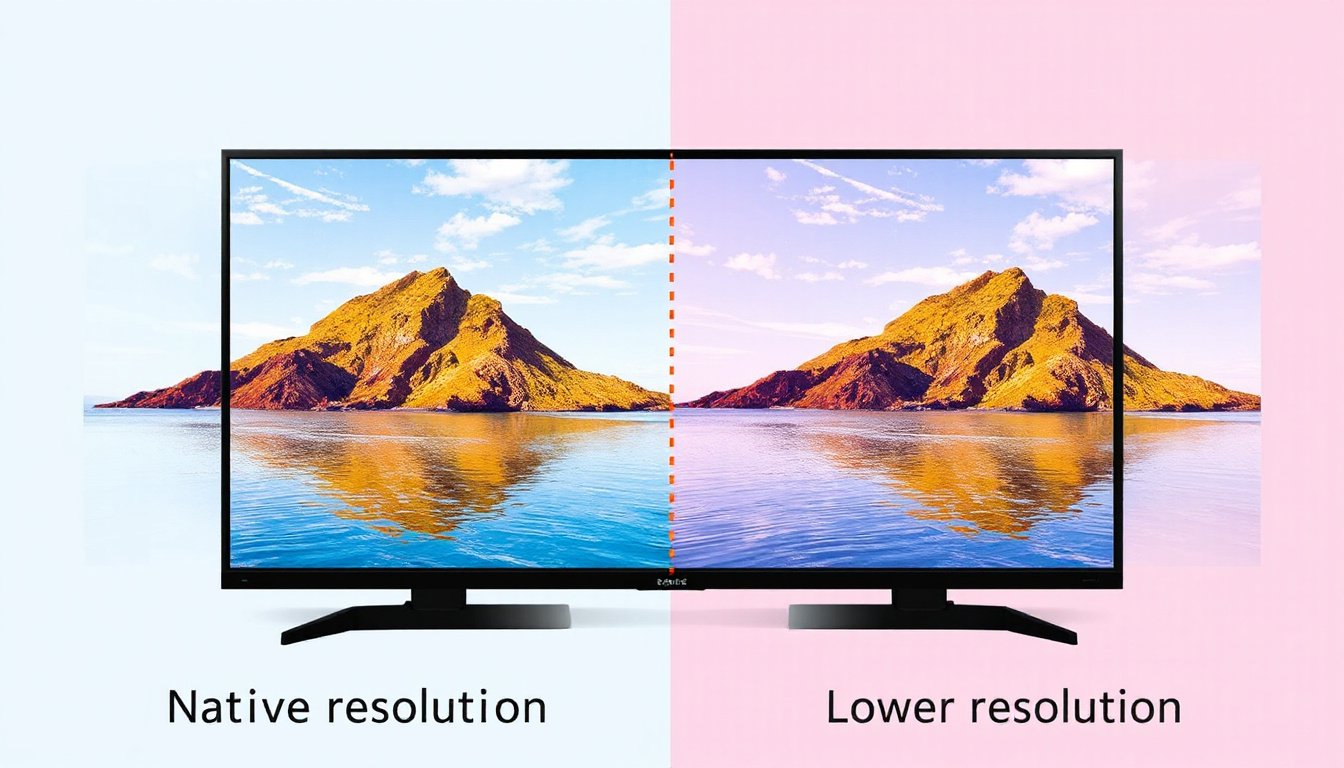
When you set your display to its native resolution, images and text appear crisp, clean, and precisely detailed. This is particularly important for graphic design, video editing, gaming, and any task requiring high visual fidelity. Deviating from the native resolution forces the display to use interpolation (scaling) to fill the pixel grid, which can blur or distort the image.
For instance, if you display a 1280×720 image on a 1920×1080 native screen, the monitor has to scale the image up, smoothing out pixel information. The result is less sharp images with possible artifacts or distortions.
Maintaining Aspect Ratio
The native resolution defines the display’s aspect ratio—the proportional relationship between the display’s width and height. Using unsupported resolutions can break this ratio and result in stretched or squashed visuals. For example, mapping a 1024×768 (4:3 aspect ratio) image onto a 1280×1024 monitor (5:4) would lead to distortion and loss of image fidelity.
Gaming Performance and Visuals
Gaming benefits considerably from running at a display’s native resolution. Games rendered at native resolution deliver the sharpest textures and smoothest graphics. Playing games at non-native resolutions might introduce blurry images or scaling artifacts and sometimes cause issues with frame rates due to additional GPU scaling workload.
Graphics and Professional Use
For professionals in video editing, photo manipulation, or graphic design, working at native resolution ensures that what you see corresponds exactly to the final output. This accuracy is essential in workflows where detail and precision are critical.
Can You Change Native Resolution?
Technically, the native resolution cannot be changed because it is physically fixed by the pixel matrix of your screen. Although you may select lower or higher resolution settings in your computer or device’s display preferences, the underlying pixel count of the monitor remains constant.
When non-native resolutions are used, the monitor uses scaling algorithms to fit the image onto the fixed pixel grid. While some monitors scale well—especially when the resolution is an exact multiple or divisor of the native resolution—most scaling results in minor quality loss, including softness and color inaccuracies.
Practical Considerations and FAQs
-
Does using a non-native resolution damage the screen?
No, there is no risk to your hardware. The image quality will degrade, but your display remains safe. -
Do lower resolutions save power?
Generally, no. The backlight or pixel illumination in LCDs runs at the same level regardless of resolution. However, lower resolutions reduce GPU workload, which may marginally impact overall power consumption. -
What about resolutions higher than the native one?
Displays cannot physically show more pixels than they possess. Higher resolutions are downscaled to the native resolution, often resulting in blurred or compressed visuals. -
How to identify native resolution?
Native resolution is usually found in the product specifications or marked as the “recommended” display setting in your device’s display options. -
Does native resolution matter for smartphones and tablets?
Yes, higher native resolutions result in sharper text and images, improving readability and visual appeal. -
In virtual reality (VR), does native resolution affect experience?
Absolutely. Higher native resolution in VR reduces the “screen-door effect” (visible gaps between pixels), providing a more immersive and realistic experience.
Conclusion
Native resolution is a foundational concept for anyone interested in optimizing their visual experience. By understanding and respecting a display’s native resolution, users can ensure they enjoy images and videos at their best possible clarity, color accuracy, and detail. Whether you’re gaming on a high-end monitor, editing videos, or simply browsing the web, setting your display at its native resolution unlocks the true potential of your screen — the ultimate pathway to clarity.
Glossary
- Pixel: The smallest discrete element of a digital image or display.
- Interpolation: The process of scaling up or down an image to fit a display with differing pixel dimensions.
- Aspect Ratio: The proportional relationship between width and height (e.g., 16:9, 4:3).
- Scaling: Adjusting the size of an image to fit a particular display resolution.
By aligning your content and applications with your device’s native resolution, you open the door to the best possible visual experience, free from blur, distortion, or colour issues. Unlock clarity today by respecting native resolution — your eyes will thank you.