







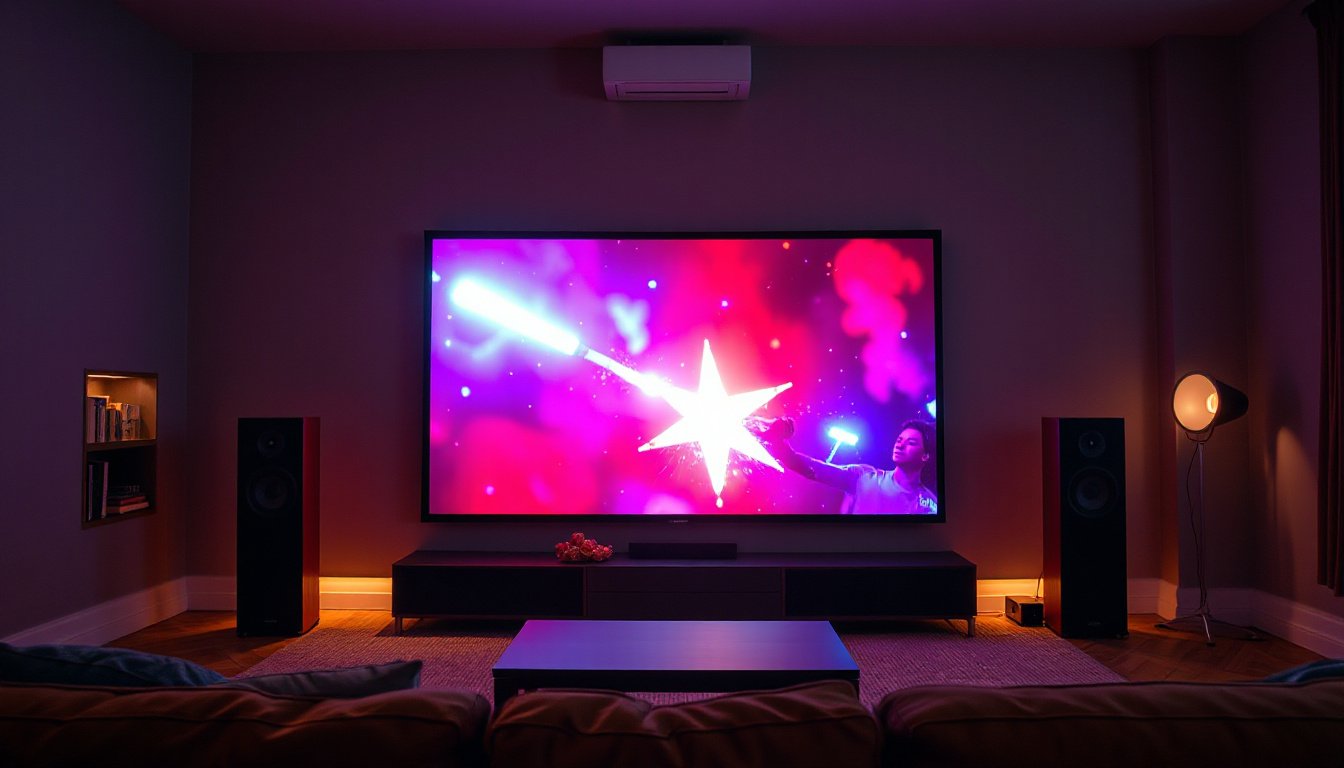
Projectors have become a popular choice for home theaters, presentations, and events due to their ability to project large, vibrant images. However, many projectors come with built-in speakers that often lack the volume, clarity, and depth needed for an immersive audio-visual experience. To truly enhance your viewing experience, connecting your projector to external speakers is essential. This guide will walk you through the best methods to hook up external audio systems to your projector, tailored to different setups and devices.
Why Use External Speakers with Your Projector?
While most modern projectors include some form of built-in audio, these integrated speakers are typically small and underpowered. They can suffice for casual viewing in small rooms, but they fall short for large spaces, immersive movie nights, or presentations requiring clear speech and immersive sound effects. External speakers provide:
- Greater volume and sound clarity
- Enhanced bass response and richer audio quality
- Flexibility to position speakers for optimal sound distribution
- Compatibility with advanced audio systems like soundbars, home theater systems, or wireless Bluetooth speakers

Popular Methods for Connecting External Speakers to a Projector
Depending on your projector model, speaker type, and content source, there are several ways to connect your audio devices. Below, we explore the most effective and common approaches.
1. Using HDMI for Audio and Video Transmission
Many modern projectors and audio systems support HDMI connections, which carry both high-definition video and digital audio signals through a single cable.
Steps to Connect via HDMI:
- Check Compatibility: Ensure both projector and audio device (soundbar, AV receiver) have HDMI ports supporting audio output or pass-through.
- Connect HDMI Cable: Plug one end into the projector’s HDMI output and the other into the audio receiver or directly into an HDMI-input-enabled speaker system.
- Adjust Settings: On your projector’s menu, select HDMI as the audio output option.
- Test Playback: Play video content to confirm audio outputs through your external speakers.
Advantages: This method delivers high-quality, synchronized audio and video with minimal setup.
2. Connecting via Bluetooth for Wireless Audio
If you prefer a cable-free setup, Bluetooth is an excellent option for connecting your projector to external wireless speakers.
How to Set Up Bluetooth Audio:
- Verify that both your projector and the Bluetooth speakers support Bluetooth connectivity.
- Enable Bluetooth pairing on both devices.
- Select your speaker from the projector’s available Bluetooth devices list and pair.
- Play your content; audio streams wirelessly.
Ideal Use Cases: Perfect for portable setups, outdoor screenings, or when flexibility in speaker placement is desired.
Note: Bluetooth audio may sometimes introduce latency; ensure your devices support low-latency connections for video use.
3. Using a 3.5mm AUX Cable for Analog Audio
Many projectors have a headphone jack or 3.5mm audio output, and external speakers often include a 3.5mm input or RCA inputs.
How to Connect via AUX Cable:
- Confirm both devices have compatible audio ports.
- Use a 3.5mm-to-3.5mm or 3.5mm-to-RCA (red and white connectors) cable depending on your speaker inputs.
- Connect the cable from the projector’s audio out to the speakers’ audio in.
- Select the auxiliary audio output on the projector if necessary.
- Play audio to test the connection.
Advantages: This is a simple, affordable, and widely compatible solution, especially effective for older audio equipment or portable speakers.
4. Using an HDMI Audio Extractor or Splitter
In setups where HDMI sources feed the projector, but audio needs to be routed separately to external speakers or receivers, an HDMI audio extractor can be used.
How It Works:
- Connect your input device (laptop, cable box, or game console) to the HDMI audio extractor.
- The extractor splits the HDMI signal into video (HDMI output to projector) and audio (via RCA, 3.5mm cable, or optical output to speakers).
This option is useful if the projector lacks audio output capabilities or you want higher quality audio routed directly to an AV receiver.
5. Full AV Receiver Setup for Home Theaters
For enthusiasts aiming for the best audio quality and advanced surround sound configurations:
- Connect all source devices (Blu-ray player, cable box, consoles) to the AV receiver via HDMI.
- The receiver processes audio to speakers and sends the video signal out to the projector.
- This setup allows control over multiple speakers and supports formats like Dolby Atmos or DTS:X.
Though more expensive and complex, this configuration delivers the best audiovisual experience for dedicated home theaters.
6. Stream Content Through a Device with Bluetooth Audio
If you use streaming devices like Amazon Fire TV Stick plugged into the projector’s HDMI port, many support Bluetooth audio transmission. You can pair these directly with Bluetooth speakers or use a Bluetooth audio receiver connected to your stereo system for cable-free sound.
This method enables a clean, wireless setup without additional cables running across your room.
Additional Tips for Better Audio Setup
- Check Your Projector’s Manual: Audio output options can vary.
- Consider Audio Delay Corrections: Some external speakers have audio-delay settings to sync sound with video.
- Use High-Quality Cables: To minimize interference and maintain signal integrity.
- Speaker Placement: Position your speakers for optimal sound coverage—front-facing, spaced evenly, and not obstructed.
Conclusion
Using external speakers with your projector can dramatically enhance your entertainment or presentation experience by delivering powerful, clear, and immersive sound. Whether you opt for a simple AUX cable, utilize Bluetooth’s convenience, or establish a high-end AV receiver system, there are plenty of options catered to your needs and budget. Understanding your projector’s compatibility and desired audio setup will ensure you achieve a seamless and enjoyable audiovisual environment.
Frequently Asked Questions (FAQs)
Do projectors have built-in speakers?
Yes, most projectors have built-in speakers, but their sound quality and volume are generally limited.
What types of speakers can I use with my projector?
You can use wired soundbars, home theater speakers, portable Bluetooth speakers, or professional audio receivers, depending on your projector’s audio output options.
How do I know which audio output my projector has?
Check the projector’s specifications or user manual. Common outputs include HDMI ARC, 3.5mm audio out, optical audio, or Bluetooth.
By properly connecting external speakers to your projector, your movie nights, presentations, and gaming sessions will gain a new level of excitement and engagement. Enjoy the immersive combination of large visuals and rich sound quality!