





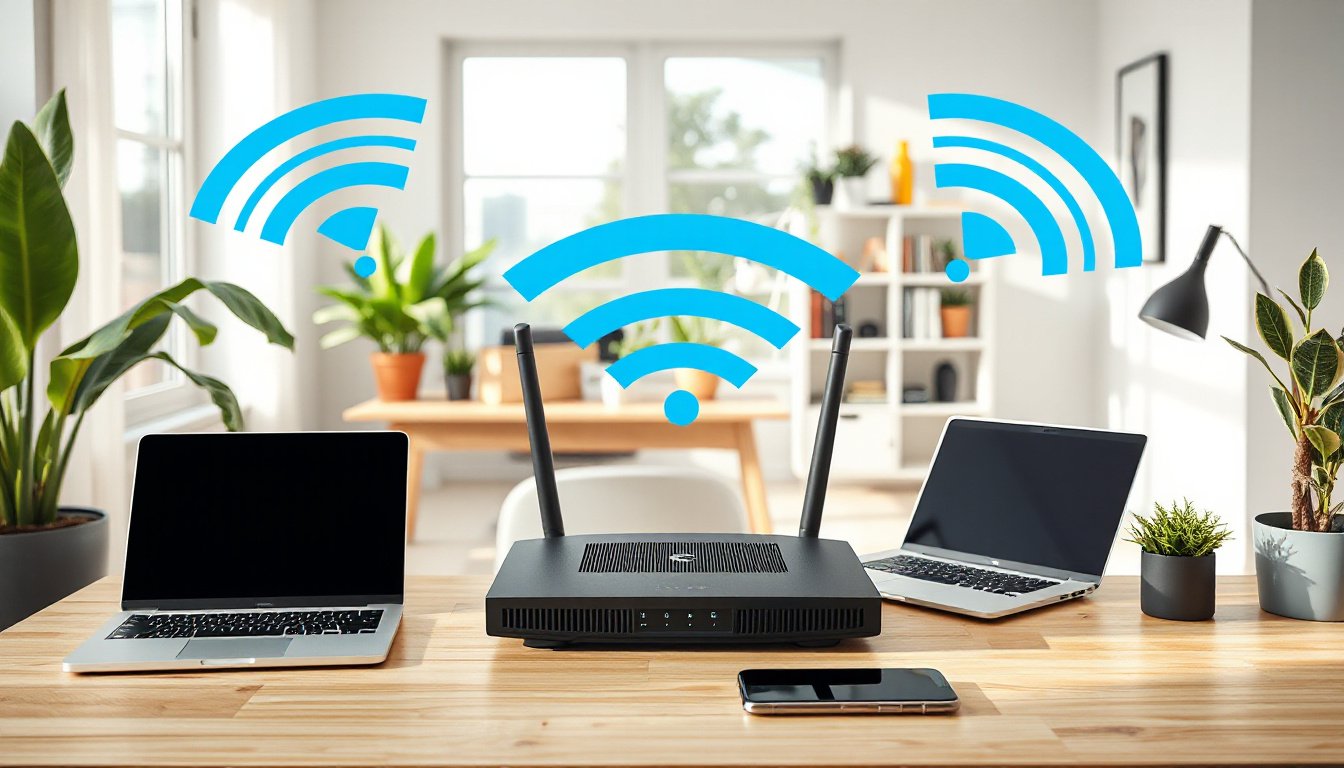
In today’s digitally driven world, Wi-Fi has become an essential part of our daily lives, enabling seamless internet connectivity without the clutter of cables. Whether at home or in the office, understanding Wi-Fi technology and how to optimize it can significantly enhance your online experience. This comprehensive guide will introduce you to Wi-Fi basics, its benefits, various standards, and practical tips to set up and manage your wireless network efficiently.
What Is Wi-Fi?
Wi-Fi, pronounced "why-fi," refers to a set of wireless communication standards that enable devices like smartphones, laptops, printers, and smart TVs to connect to the internet and each other using radio waves. It falls under the umbrella of wireless local area networks (WLANs) and particularly adheres to the IEEE 802.11 standards for wireless networking.
At its core, Wi-Fi provides a way to substitute traditional wired connections with wireless signals, delivering convenience and mobility. The technology operates over specific frequency bands, primarily 2.4 GHz, 5 GHz, and the newer 6 GHz band, each with unique characteristics affecting range and speed.
How Does Wi-Fi Work?
Wi-Fi networks typically consist of two main components:
- Router (Access Point): A device that connects to the internet via a fixed or mobile broadband connection and broadcasts Wi-Fi signals.
- Client Devices: Devices like computers, smartphones, and other gadgets that connect wirelessly to the router.
Routers serve as intermediaries, linking your local network to the global internet and enabling multiple devices to communicate simultaneously without wires. While some routers use Ethernet cables to connect to the internet, they communicate with client devices wirelessly over radio frequencies.
Wi-Fi vs. Internet and Ethernet
It’s important to distinguish between Wi-Fi, Internet, and wired connections:
- Internet is the vast network of networks connecting millions worldwide.
- Wi-Fi is a wireless means to connect devices to a local area network (LAN), which in turn connects to the internet.
- Ethernet (Wired LAN) uses cables to connect devices instead of radio waves.
Wi-Fi replaces bulky wiring with flexible wireless connections, although wired Ethernet often offers more stable and faster links in some scenarios.
Wi-Fi Standards and Evolution
Wi-Fi technology has evolved through various standards, each improving speed, range, and efficiency:
| Standard | Common Name | Max Speed | Frequency Bands |
|---|---|---|---|
| IEEE 802.11b | Wi-Fi 1 | 11 Mbps | 2.4 GHz |
| IEEE 802.11g | Wi-Fi 3 | 54 Mbps | 2.4 GHz |
| IEEE 802.11n | Wi-Fi 4 | 600 Mbps | 2.4 GHz / 5 GHz |
| IEEE 802.11ac | Wi-Fi 5 | 6.9 Gbps | 5 GHz |
| IEEE 802.11ax | Wi-Fi 6 | 9.6 Gbps | 2.4 GHz / 5 GHz / 6 GHz* |
| IEEE 802.11be | Wi-Fi 7 | Up to 46 Gbps | 2.4 GHz / 5 GHz / 6 GHz |
*Wi-Fi 6E adds support for the 6 GHz band, enhancing speed and reducing congestion.

The latest Wi-Fi 7 (IEEE 802.11be) promises even faster speeds and lower latency, making it suitable for demanding applications like 8K video streaming, VR, and smart office setups.
Frequency Bands: What You Need to Know
- 2.4 GHz: Offers better range and penetration through walls but lower maximum speeds; prone to interference due to overcrowding (e.g., from Bluetooth devices, microwaves).
- 5 GHz: Higher speeds with less interference but shorter range and less wall penetration.
- 6 GHz (Wi-Fi 6E and 7): Newest band with more available channels, minimal interference, and high speeds—ideal for high-density environments.
For optimal performance, modern devices and routers often support dual-band (2.4 GHz and 5 GHz) or tri-band (adding 6 GHz) connectivity, automatically switching to the best band based on current conditions.
Benefits of Using Wi-Fi at Home and Office
- Wireless Convenience: Freedom from cables enhances mobility and reduces clutter.
- Multiple Device Support: Connect smartphones, laptops, TVs, printers, smart appliances, and more simultaneously.
- Cost Savings: Using Wi-Fi can reduce mobile data consumption, lowering overall communication costs.
- Smart Home Integration: Wi-Fi networks enable control of smart home devices remotely, such as lights, thermostats, and security systems.
- Supporting Remote Work and Learning: Enables efficient telework and online education with stable internet access.
- Public Accessibility: Many cafes, airports, and public venues offer Wi-Fi hotspots, facilitating internet use on the go.
Setting Up a Wi-Fi Network
- Choose an Internet Service Provider (ISP): Options range from fiber optic (high speed, requires installation) to mobile broadband (flexible, no installation).
- Select the Right Router: Consider Wi-Fi generation compatibility, range, and features like mesh networking or parental controls.
- Install and Configure:
- Connect the router to your internet source (modem, fiber terminal).
- Power on and follow initial setup instructions.
- Secure your network with a strong password using WPA3 security.
- Connect Devices:
- Search for your Wi-Fi network’s SSID (name).
- Enter the password or scan a configuration QR code if available.
- Optimize Placement: Position your router centrally and elevated to maximize coverage.
- Expand Coverage: Use Wi-Fi extenders or mesh networks to cover large or multi-floor spaces.
Managing and Securing Your Wi-Fi Network
- Regularly Update Firmware: Router manufacturers release updates to improve performance and security.
- Use Strong Security Protocols: WPA2 or WPA3 encryption protects your network from unauthorized access.
- Monitor Connected Devices: Use router management tools to identify and control devices on your network.
- Set Parental Controls: Restrict access or schedule Wi-Fi availability for children’s devices.
- Beware of Public Wi-Fi Risks: Avoid sensitive transactions on unsecured networks; use VPNs for added protection.
Troubleshooting Common Wi-Fi Issues
- Slow Speeds: Check for interference, router placement, or consider upgrading hardware.
- Intermittent Connection: May result from overlapping channels or too many connected devices.
- No Connection: Verify settings, restart devices, or reset router.
- Dead Zones: Use Wi-Fi extenders or mesh systems to improve coverage.
Future Trends in Wi-Fi
The introduction of Wi-Fi 7 and the expanded use of the 6 GHz band will dramatically enhance wireless networks by improving throughput, reducing latency, and supporting a growing number of smart devices in homes and offices. Mesh networking and AI-based network management will also become more widespread, enabling smarter and more adaptive connectivity.
Conclusion
Wi-Fi technology has revolutionized how we connect to the digital world, offering flexibility and efficiency critical for modern lifestyles and workplaces. By understanding Wi-Fi’s fundamentals, choosing appropriate hardware, and following best practices for setup and security, users can unlock seamless connectivity that supports everything from casual browsing to high-bandwidth applications and smart home automation.
Whether upgrading your home network or optimizing office connectivity, embracing the advancements in Wi-Fi standards will deliver faster, more reliable, and safer internet access for all your connected devices.
For detailed information on choosing Wi-Fi routers, optimizing network settings, or exploring mesh Wi-Fi systems, consult your device’s manufacturer resources or trusted technology guides.