





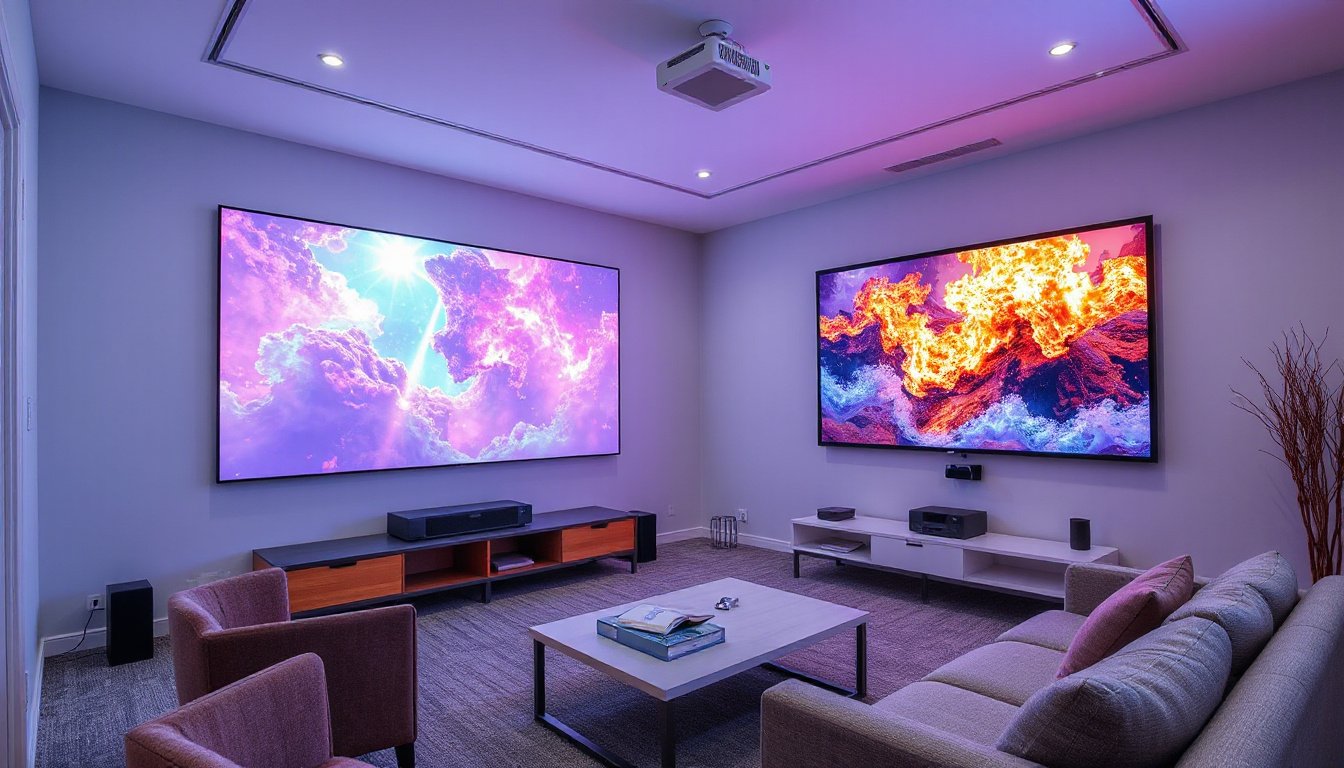
In today’s digital age, the way we share content—be it presentations at work or streaming movies for friends and family—has evolved dramatically. Projector apps have revolutionized the experience, enabling wireless and seamless casting from your smartphone or tablet to larger screens. Whether you want to impress in a boardroom or enjoy an immersive movie night at home, understanding how to use projector apps effectively can transform your viewing experience.
What Are Projector Apps?
Projector apps are software solutions designed to bridge your mobile device and a physical projector or smart TV. Contrary to some misconceptions, these apps do not turn your phone into a projector—your phone lacks the hardware (such as a powerful focused light source and lens system) required to project an image onto a distant surface. Instead, these apps work by wirelessly or via cable streaming the content from your device to a compatible projector or smart display.
There are primarily three types of projector-related apps:
- Screen Mirroring and Casting Apps: For wirelessly sharing your screen content.
- Projector Control Apps: For controlling projector settings remotely.
- Niche/Novelty Apps: For creative functions like tracing or augmented reality projections.
How Projector Apps Enhance Your Presentations and Viewing
Using projector apps creatively empowers you to:
- Wirelessly cast presentations, documents, photos, and videos, eliminating the need for cumbersome cables.
- Control projector settings remotely, such as volume, input sources, and power.
- Collaborate during meetings or classes by mirroring multiple devices simultaneously.
- Stream your personal video content easily via dedicated streaming services linked to some projector apps.

Top Projector Apps to Consider in 2025
Here is a curated list of highly effective projector apps for iOS and Android devices, particularly useful for different needs such as education, business, or entertainment:
1. Epson iProjection
Designed for use with Epson-compatible projectors, this app supports wireless screen mirroring and projection of various file types including Microsoft Office documents and PDFs. Features like annotation tools and QR code pairing make it perfect for interactive presentations.
2. Panasonic Wireless Projector
Compatible with Panasonic devices, this app allows projection of PDFs, PPTs, images, and even websites through an easy-to-navigate interface. Ideal for educational and professional environments.
3. Mirroring360
Mirroring360 supports cross-platform mirroring (iOS, Android, Windows, macOS) and enables multiple devices to connect simultaneously, promoting collaboration in classrooms and meetings.
4. Projector Quick Connection by Maxell
This app lets compatible Maxell projectors project images, documents, and web pages wirelessly. It also allows remote control over projector functions and multi-device projection with split screens for effective teamwork.
5. Projector by Quantum4u
Ideal for Android users looking to cast screens to smart TVs, this app supports high-quality mirroring and includes universal remote features compatible with many TV brands.
6. MultiPresenter
Developed for NEC projectors, MultiPresenter supports wireless, multi-screen projection and includes annotation tools to enrich presentations.
7. Projector Stream
A personal video streaming service enabling you to upload and stream your own videos from your phone directly to a smart TV or projector interface.
Smart Projectors with Built-in Apps
Modern smart projectors often come equipped with operating systems like Google TV, Netflix, YouTube, and other streaming apps built-in. These devices do not require any external devices or cables—just connect to your Wi-Fi and stream directly. This all-in-one solution offers a smooth and high-quality cinematic experience without the inconvenience of setup hassles.
How to Use Projector Apps: Step-By-Step
- Ensure Compatibility: Verify that your projector supports wireless connectivity or is compatible with the app you plan to use.
- Connect to Same Wi-Fi Network: For most apps, both your phone/tablet and the projector must be on the same Wi-Fi network.
- Download and Install the App: Get the recommended app for your projector from the App Store or Google Play Store.
- Launch the App and Pair Your Device: Use QR codes, device discovery, or manual IP entry as guided by the app.
- Select Content to Project: Choose documents, photos, videos, or screen mirroring depending on your needs.
- Enhance Your Presentation: Utilize annotation tools or collaborative features if available.
Tips for the Best Projection Experience
- Choose a projector with sufficient brightness (measured in lumens) to ensure clear images in various lighting conditions.
- Consider the resolution: 4K projectors offer sharper and more detailed images than 1080p, especially on larger screens.
- Invest in Ultra Short Throw (UST) Projectors for space-saving setups that deliver large images placed close to the wall.
- Use projection screens designed to enhance image quality for brighter, crisper visuals, especially in rooms with ambient light.
Frequently Asked Questions about Projector Apps
Q: Can an app turn my phone into a projector?
A: No. Your phone lacks the hardware to physically project images. Apps facilitate casting your screen to a separate projector device.
Q: How do I connect my phone to a projector wirelessly?
A: Use compatible projector apps or built-in features like AirPlay (for iOS) or Google Cast (for Android) to mirror your screen over Wi-Fi.
Q: Can I use these apps for movie nights?
A: Absolutely. When paired with a compatible projector, these apps provide a simple way to stream or mirror movies from your device to a large screen.
Q: What if my projector doesn’t support wireless connections?
A: You can use HDMI or USB-C adapters to physically connect your phone to the projector for stable video transmission.
Using projector apps effectively extends your device’s capabilities, allowing you to share and showcase content with elegance and ease. Whether at work or home, mastering these tools is your key to stunning, big-screen presentations and unforgettable movie nights. Step beyond the small screen and transform your viewing experience today!