





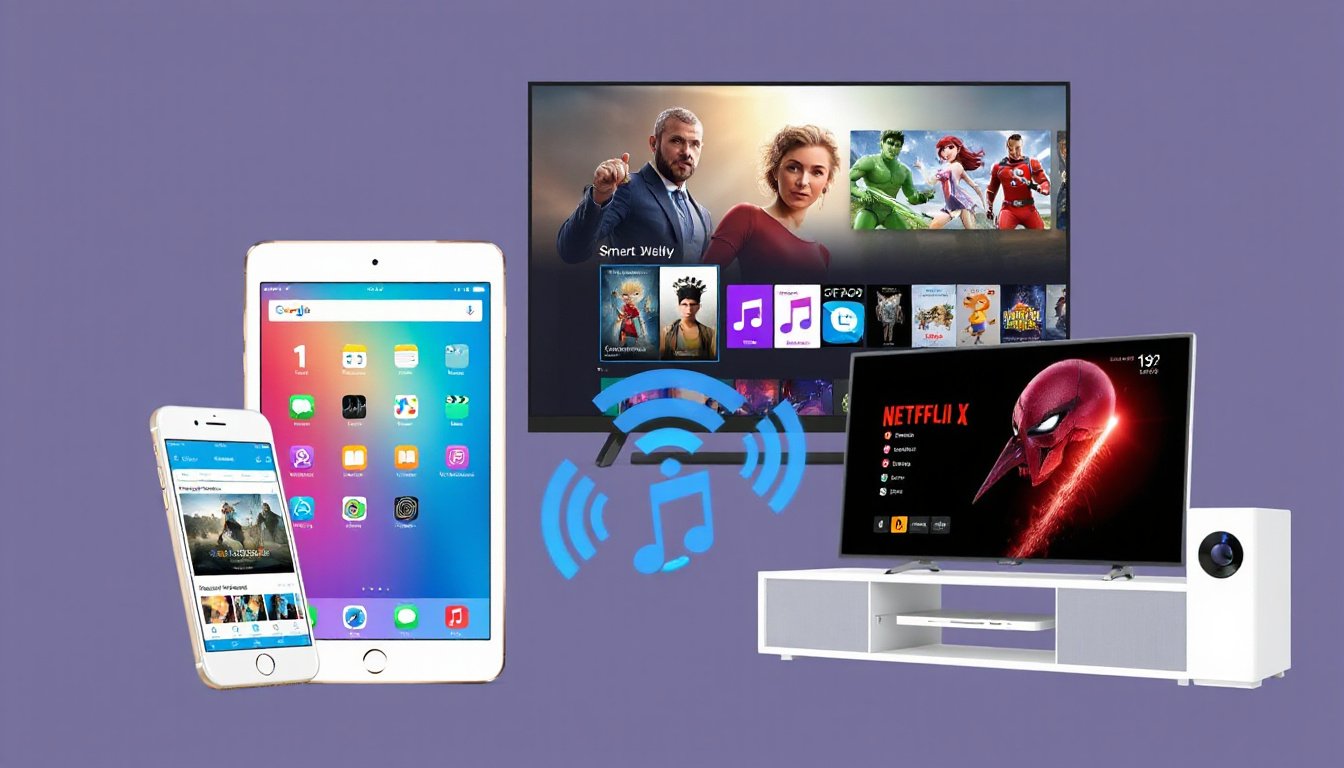
In today’s connected world, the ability to seamlessly share and enjoy content across devices is more important than ever. Apple’s AirPlay technology stands out as a versatile and powerful solution, enabling users to stream videos, music, photos, and even mirror screens across various Apple devices and compatible smart TVs with ease. Whether you want to watch your favorite movie on a large screen, listen to music throughout your home, or share a presentation wirelessly, AirPlay makes it possible with just a tap.
What is AirPlay?
AirPlay is Apple’s proprietary wireless streaming protocol designed to transmit audio, video, and screen content from an iPhone, iPad, or Mac to an Apple TV, AirPlay-enabled smart TV, HomePod speakers, or even compatible Macs. It supports high-quality 4K video streaming and immersive audio formats such as Spatial Audio and Dolby Atmos, offering an exceptional entertainment experience. Beyond just media streaming, AirPlay integrates smoothly with Apple’s ecosystem, including Siri voice commands and HomeKit for smart home control.
How Does AirPlay Work?
Using AirPlay is straightforward: your Apple device and the receiving device (like Apple TV or an AirPlay-compatible smart TV) must be connected to the same Wi-Fi network. Once connected, you simply tap the AirPlay icon available within apps or on your device’s Control Center, select the target device, and start streaming or mirroring your content.
Streaming Video and Audio
AirPlay supports streaming of videos, music, podcasts, photos, home videos, and presentations. For example, you can stream a movie from the Apple TV app on your iPhone directly to your Apple TV 4K or an AirPlay-enabled smart TV. Music lovers can stream tracks to HomePod speakers or other AirPlay-compatible audio devices, creating synchronized multiroom audio environments or playing different songs in different rooms.
Screen Mirroring
Beyond streaming media files, AirPlay also lets you mirror your iPhone or iPad screen to a larger display, such as a TV or Mac. This feature is perfect for sharing websites, presentations, games, or apps wirelessly with an audience. Mirroring can be easily started from the Control Center by selecting the Screen Mirroring option and choosing the desired device.

Key Features and Benefits
- Wide Device Compatibility: AirPlay works with Apple TV, Mac, iPhone, iPad, HomePod, and smart TVs from leading manufacturers like Samsung, LG, and Sony, supporting seamless interoperability.
- Privacy and Security: AirPlay maintains your privacy by ensuring content is shared securely between your devices.
- Multiroom Audio Capabilities: Stream music to multiple AirPlay-enabled speakers in perfect sync or play different audio in separate rooms.
- Siri Integration: Use voice commands via Siri to play specific shows on your TV or music in specific rooms, making control effortless and hands-free.
- Intelligent Suggestions: Over time, your Apple devices learn your AirPlay preferences and provide smart suggestions to play content where you most often enjoy it.
- Easy Control: Built-in controls on iPhone and iPad allow you to manage playback, volume, and more directly from your device’s Lock Screen or Control Center.
AirPlay Beyond Home Use
AirPlay’s convenience extends beyond private homes. Some hotel chains, including select IHG® properties, have integrated AirPlay into guest room televisions, allowing travelers to stream their favorite content while away. This feature enhances the guest experience by enabling personalized entertainment on the go.
How to Use AirPlay Effectively
- Ensure all devices are on the same Wi-Fi network.
- Open the app or content you want to stream on your iPhone, iPad, or Mac.
- Tap the AirPlay or Screen Mirroring icon.
- Select the AirPlay-enabled device from the list.
- To stop streaming or mirroring, tap the AirPlay icon again and select your device.
Note: Some apps may not support AirPlay video streaming natively. In such cases, check whether the app is available on your Apple TV or the receiving device.
Conclusion
AirPlay delivers a powerful, user-friendly way to wirelessly stream and share your favorite audio and video content across Apple’s ecosystem and compatible smart devices. With features like multiroom audio, high-fidelity video streaming, intelligent suggestions, and Siri integration, AirPlay transforms how you experience media at home and beyond. Whether for entertainment, work, or social gatherings, AirPlay brings effortless connectivity and enjoyment, maximizing the potential of your Apple devices and smart home setup.