





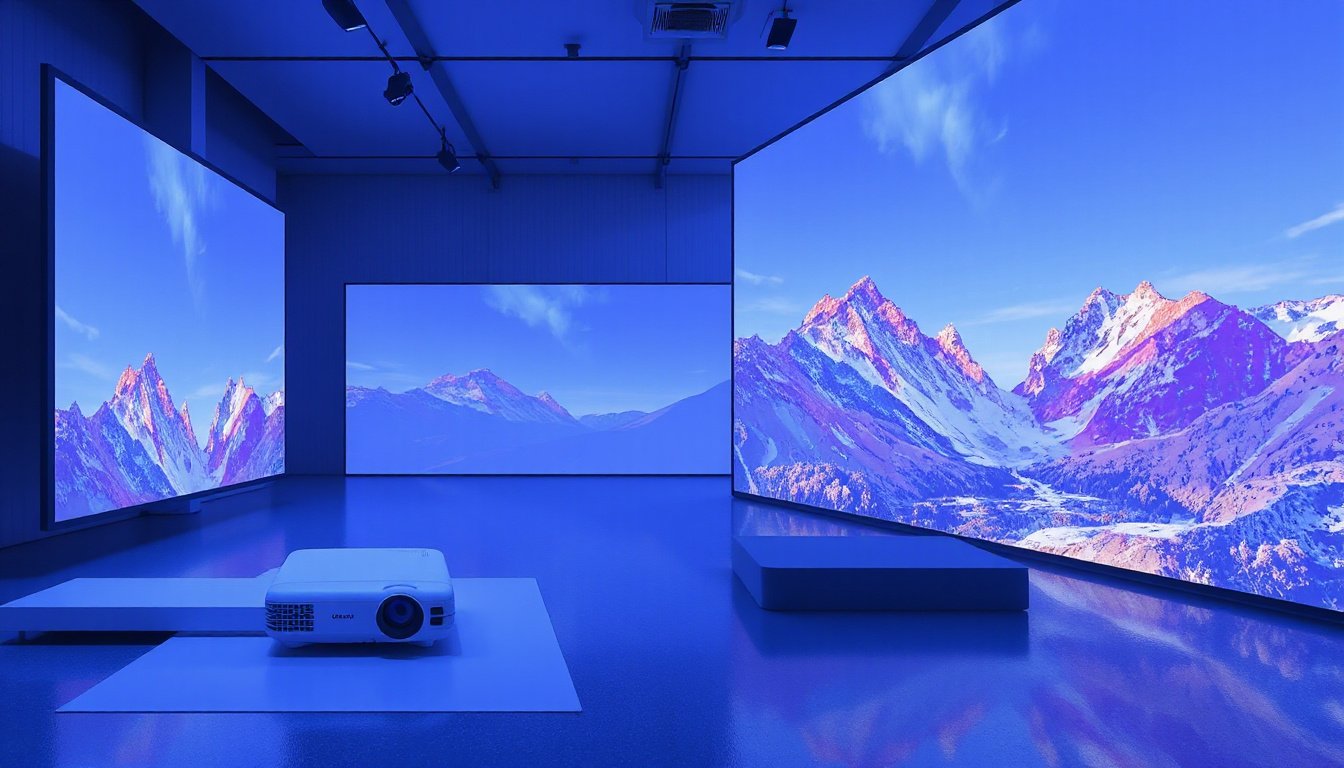
Edge blending is a powerful technique used in multi-projector setups to create expansive, seamless images by merging the overlapping edges of each projected output. This method transforms fragmented images into one cohesive and immersive display, widely embraced in live events, large-scale presentations, and immersive installations. Understanding edge blending features, configuration methods, and critical settings will empower both amateurs and professionals to elevate their visual presentations.
What is Edge Blending and How Does it Work?
Edge blending refers to the process of overlapping the marginal areas of two or more projected images so that the boundaries between them appear imperceptible. Instead of distinct borders where two projector images meet, edge blending softly fades one image into another. This is achieved by digitally adjusting brightness, color, and intensity within the overlapping zones to ensure uniformity and a smooth transition.
Typically, edges of projector outputs overlap by a set width. This overlap is digitally blended to avoid harsh lines or brightness mismatches. The resulting composite image appears as if projected by a single large display rather than multiple projectors.
Key to the success of edge blending is image warping — a feature that allows geometric correction of individual projections to counteract distortion caused by projector angle, lens, or the projection surface shape. This ensures precise alignment and pixel-perfect overlaps.

Core Features and Settings of Edge Blending
1. Blend Width & Overlap
The blend width defines the size of the overlapping zone between images. Because the projections overlap, the effective full output size becomes slightly smaller than the sum of individual projector outputs. The width must be carefully chosen to provide enough overlap for smooth blending but not so wide as to waste resolution.
2. Blend Modes
Different blending curves control how the fade between overlapping images transitions:
- Linear: A direct, straight gradient transition.
- Cubic: A gently curved fade for more natural blending.
- Quadratic: A stronger curved transition providing a smoother visual effect.
Testing these modes helps determine the most seamless visual for a particular setup.
3. Radius and Intensity Adjustments
Fine control sliders allow users to tweak how far the blended region extends (radius) and how intense the brightness adjustment is. These parameters balance the exposure of the overlap area with the surrounding image brightness to avoid visible seams or hotspots.
4. Color Adjustment and Black Level
Since projectors cannot produce true black (due to lamp and display technology), black levels in the overlapping area may appear brighter relative to other parts of the image. Adjusting black levels and color settings ensures that the blend zones match the rest of the projection in both brightness and hue.
5. Edge Selection
For each projector, you can specify which edges are blended. This allows configuring multiple projectors in grids or curved panoramas, blending right edges with left edges, or top with bottom.
6. Guides and Alignment Tools
Projectors and software often provide on-screen guides and test patterns (e.g., line guides, grid patterns) to assist in aligning images, positioning blend zones, and verifying smooth transitions.
Techniques for Effective Edge Blending
– Precise Projector Positioning and Geometry Correction
Physical alignment of projectors is the first step toward seamless blending. Each projector should be positioned and angled carefully so that output images overlap optimally. Using lens shift, zoom, and keystone correction features on projectors helps keep images aligned.
Additionally, software-based geometry correction (image warping) compensates for curved or irregular projection surfaces, ensuring edges match pixel-for-pixel.
– Color Calibration
Ensuring consistent brightness, contrast, gamma, and color temperature across all projectors is essential. Mismatched color output creates uncomfortable visual disruptions on the blended edges. Synchronizing projectors’ color settings or employing color calibration tools helps unify the image appearance.
– Software Configuration and Control
Configuration software, such as ProPresenter or media servers featuring edge blending capabilities, centralizes the control of blend widths, modes, and color adjustments. These tools also allow for real-time tweaking during setup and operation.
Applications and Benefits of Edge Blending
Large-Scale Presentations and Events: Edge blending enables stunning backdrop projections that can span hundreds of feet, perfect for concerts, conferences, and product launches, creating wow-factor visuals that engage audiences.
Immersive Installations: Museums, galleries, and themed attractions employ edge blending to create seamless panoramic or 360-degree projections, transporting visitors into virtual worlds with uninterrupted imagery.
Creative Visual Arts: Performance artists and visual designers use edge blending to craft vast projection canvases for storytelling and interactive experiences.
Choosing the Right Equipment
Successful edge blending depends significantly on the projectors and supporting equipment chosen:
- High Brightness and Contrast: Ensure visibility and vividness, especially in ambient light.
- Appropriate Throw Ratio: Projectors must be suitable for the available distance to achieve the desired image size.
- Lens Shift and Keystone Correction: Critical for precise image positioning without physically moving projectors.
- Connectivity and Compatibility: Projectors and processors should support compatible inputs/outputs and synchronize blending features smoothly.
Setting Up an Edge Blending Project: A Practical Summary
-
Verify Projection Environment: Use flat, matte projection surfaces and control ambient lighting for optimal results.
-
Connect and Detect Displays: Confirm your computer or media device recognizes all projectors with correct resolution settings.
-
Configure Screens and Outputs: Using software, create a blended screen entity and assign the right outputs for each projector.
-
Set Blend Parameters: Adjust blend width, mode (linear, cubic, quadratic), radius, and intensity.
-
Color Match Blended Areas: Use color adjustment tools to equalize brightness and black levels.
-
Align Images: Utilize guides, test patterns, and geometry correction for pixel-perfect alignment.
-
Test and Refine: Iterate the settings, walking through different scenarios and content to ensure the blend remains consistent.
Conclusion
Mastering edge blending features unlocks the potential to create mesmerizing, large-scale visuals that captivate audiences and elevate presentations. Through understanding blend zones, blending curves, color correction, and alignment techniques, users can craft immersive displays free of distracting image seams. Whether deploying projections for live events, installations, or creative work, a well-executed edge blend transforms multiple projectors into one flawless canvas.
With practice and the right equipment, edge blending can be a highly rewarding technique in the visual toolbox, bringing digital imagery to life in unprecedented scale and harmony.