





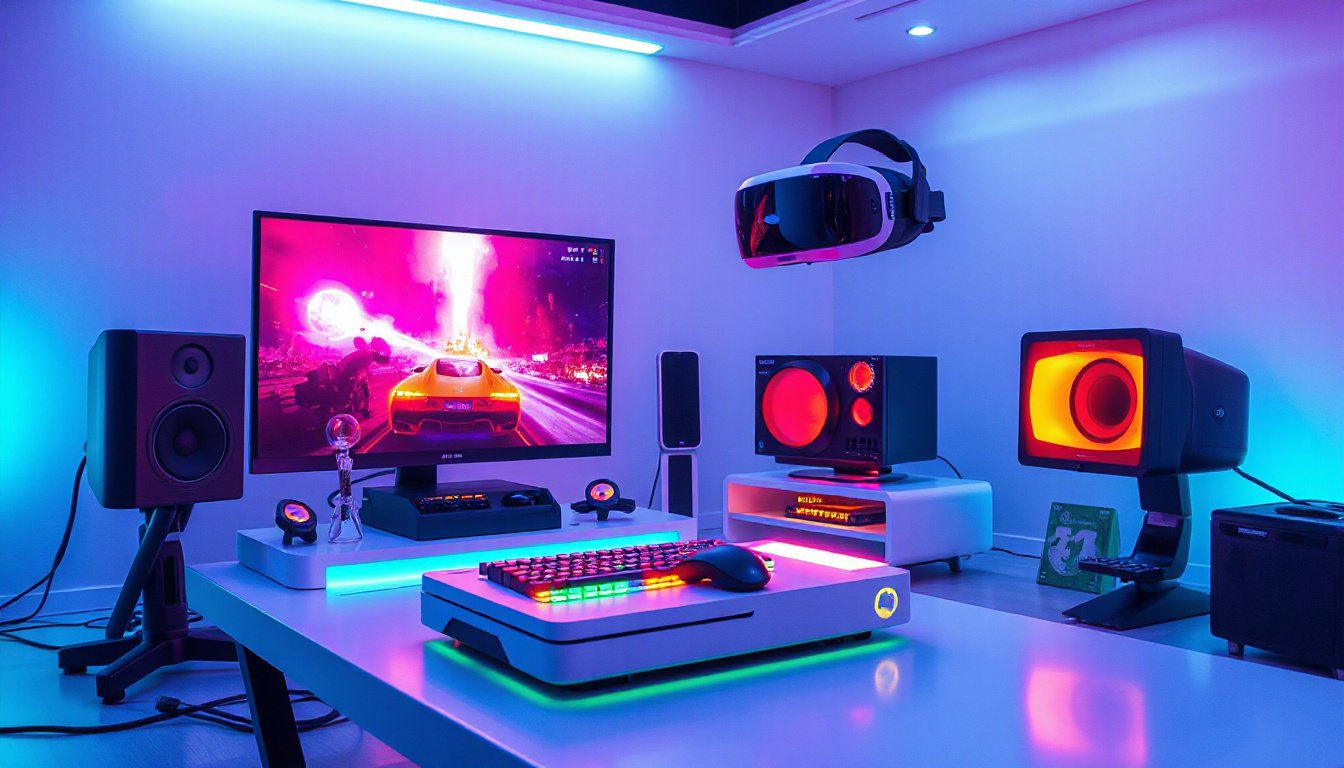
In the fast-paced world of gaming, every millisecond counts. Whether you’re a casual player or a competitive eSports enthusiast, maximizing your device’s performance can make the difference between victory and defeat. This is where Gaming Mode comes into play—a feature or suite of optimizations designed to enhance your overall gaming experience by fine-tuning your device’s resources and minimizing interruptions. This guide will walk you through what Gaming Mode is, how it boosts your gameplay, and tips to leverage it effectively.
What is Gaming Mode?
Gaming Mode is a specialized setting or application integrated into many modern smartphones, computers, and gaming hardware that optimizes performance during gameplay. When activated, it reallocates system resources such as CPU, GPU, and memory towards the game, reduces background activity, and blocks distractions like notifications and incoming calls.
These modes can vary widely across devices. For instance, popular Android manufacturers offer their own gaming optimizers:
- OnePlus Games: A free game utility app by OnePlus that optimizes CPU and GPU usage, blocks notifications and incoming calls, and provides additional features like screen recording and network optimization.
- Xiaomi Game Turbo: Offers performance boosts and system optimization tailored for Xiaomi devices.
- Samsung Game Launcher: Provides a dedicated gaming space with similar performance boosts and interruption blocking.
On PCs, Gaming Mode often refers to system settings or software that optimize Windows resources for gaming and minimize background processes.
How Does Gaming Mode Enhance Your Gameplay?
1. Performance Optimization
Gaming Mode prioritizes your game’s access to the CPU, GPU, and RAM. By reallocating processing power, it prevents performance dips such as lag, stutter, or frame drops—even in graphically intensive games. For example, OnePlus’ Fnatic Mode dynamically optimizes device hardware to maintain smooth and stable gameplay, especially during competitive sessions.
2. Distraction-Free Gaming
A core feature of Gaming Mode is to eliminate interruptions. Notifications, messages, and incoming calls are either disabled or silenced, preventing popup distractions or accidental screen taps. This allows you to remain focused, particularly in high-stakes or multiplayer games.
3. Network Optimization
Latency can critically impact online gaming experiences. Many gaming modes incorporate network management tools that prioritize game data traffic, reduce ping times, and enhance connection stability. This means fewer interruptions and a more responsive game.
4. Additional Utility Features
Modern gaming applications bundled with Gaming Modes often include:
- Integrated Screen Recording to capture gameplay easily.
- Floating Windows for managing quick tasks without leaving the game.
- Gameplay Statistics Tracking to analyze performance and improve skills.
- Game Library Management to organize installed games for quick access.
Gaming Mode Across Platforms: A Quick Overview

Mobile Devices
Most flagship Android devices come preloaded with gaming suites:
- OnePlus Games focuses on maximizing OnePlus hardware potential, offering Fnatic Mode and notification blocking but may suffer from intrusive ads.
- Xiaomi Game Turbo and Oppo Game Space offer similar optimizations tailored to their respective devices.
- Dedicated gaming modes can also be enabled on smartphones running on the latest Android versions, often visible in settings or quick-toggle menus.
Windows PCs
Windows 10 and 11 include a built-in Gaming Mode setting found in the system settings that:
- Allocates more CPU power to your games.
- Foregrounds your game over background processes.
- Automatically suspends Windows Update during gameplay to avoid system interruptions.
Third-party software like Razer Cortex also provides game-boosting utilities, including performance optimization and background service management.
Consoles
Gaming Modes on consoles usually focus on input lag reduction and system responsiveness. Consoles are typically optimized out of the box, but they may include settings to prioritize performance or visual fidelity based on user preference.
Tips to Maximize Gaming Mode Efficiency
-
Keep Your Device Updated
Manufacturers regularly refine Gaming Mode features through OS updates. Running the latest software ensures you benefit from performance improvements and bug fixes. -
Close Unnecessary Apps Before Starting
Even with gaming optimizations, closing background apps manually can free up additional memory and processing power. -
Enable Network Prioritization
If your device supports it, turn on network optimization within Gaming Mode, especially for online or multiplayer games. -
Adjust Graphics Settings If Possible
Complement Gaming Mode by tweaking in-game graphics options to balance quality and performance, ensuring smooth gameplay. -
Use Do Not Disturb Features Alongside Gaming Mode
Sometimes combining system-level Do Not Disturb with Gaming Mode can eliminate all potential distractions.
Potential Drawbacks of Gaming Mode
While Gaming Mode provides clear advantages, users may encounter some downsides such as:
- Intrusive Ads: Certain third-party gaming apps implement ads that hamper the user experience.
- Battery Drain: Higher performance often means more power consumption; keeping your device charged is advisable during extended sessions.
- Limited Compatibility: Some features might only work with specific devices or games.
Being aware of these limitations allows you to use Gaming Mode strategically without frustration.
Conclusion
Gaming Mode is an essential tool for anyone looking to unlock peak device performance and enjoy distraction-free gaming. By intelligently optimizing hardware resources, blocking interruptions, and enhancing network stability, it empowers both casual and professional gamers to engage more deeply with their games.
Whether you’re playing on a smartphone like a OnePlus or Xiaomi device, or gaming on a Windows PC, enabling Gaming Mode is a straightforward yet powerful step toward smoother, more immersive gameplay. Ensure you explore your device’s gaming features, keep them updated, and configure the settings to fit your play style for the ultimate gaming experience.
Embrace Gaming Mode today and elevate your gaming sessions to the next level!