





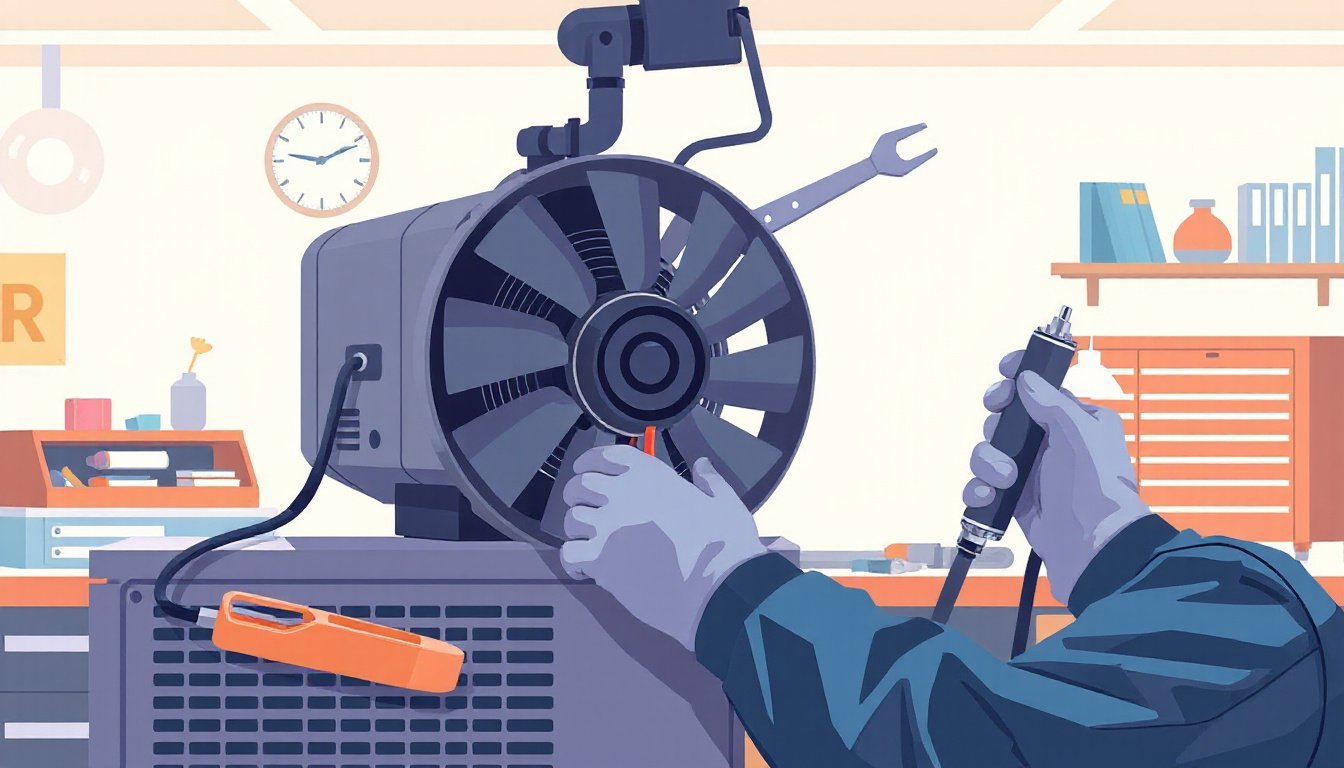
Projectors have become indispensable tools for home entertainment, education, and professional presentations. However, these sophisticated devices contain sensitive components that require regular maintenance to ensure optimal performance and longevity. Among these components, the cooling fan plays a crucial role in preventing overheating and maintaining system stability. This guide provides comprehensive advice on maintaining your projector fan effectively, alongside general projector care tips to keep your device running smoothly.

Why Projector Fan Maintenance Matters
Projectors generate considerable heat during operation, especially smart and high-lumen models that integrate advanced processing systems and bright light sources. The cooling fan works to dissipate this heat, protecting internal components like the lamp, lens, and circuitry from thermal damage. A malfunctioning or clogged fan can lead to:
- Overheating and automatic shutdowns
- Reduced image quality due to heat-related sensor issues
- Premature hardware failure
- Increased noise levels disrupting the viewing experience
Regular fan maintenance thus safeguards your investment, maintains clear image projection, and ensures a quiet, efficient operation.
Daily Care Tips for Your Projector Fan
1. Ensure Proper Placement for Adequate Ventilation
- Place your projector on a stable, flat surface with at least 15–20 cm clearance around all sides.
- Avoid enclosed spaces such as cabinets or soft surfaces like couches or beds that can obstruct airflow.
- Consider using stands or mounts designed for ventilation, possibly adding an external cooling fan beneath the device if you experience persistent heat.
2. Monitor Operating Temperature and Fan Behavior
Most modern projectors come with built-in system monitoring features to track temperature and fan speed. Pay attention to:
- Audible changes like louder or irregular fan noise which can indicate dust buildup or mechanical issues
- Warning messages within the projector interface signaling overheating
Promptly respond by inspecting and cleaning the fan if abnormalities occur.
How to Clean the Projector Fan Properly
Over time, dust settles in the fan blades, vents, and filters, restricting airflow and straining the cooling system. Cleaning your projector fan will preserve its efficiency and extend your device’s lifespan.
Tools Needed
- Compressed air canister or blower
- Soft brush (small paintbrush or makeup brush works well)
- Cotton swabs (optional)
- Microfiber cloth
Step-by-Step Fan Cleaning Procedure
-
Power Down and Cool Off
Turn off your projector and unplug it. Allow it to cool completely—never attempt cleaning while the device is hot or powered. -
Access the Fan Area
Identify ventilation openings or removable filter panels on your projector body. Consult your user manual for specific details. Do not attempt to disassemble internal parts unless you are trained or authorized. -
Remove Dust with Compressed Air
Use short bursts of compressed air to blow dust from the fan blades and vents. Hold the fan blades gently with a cotton swab or finger to prevent them from spinning, which could damage the motor. -
Brush Away Stubborn Debris
Gently use a soft brush to dislodge any remaining dust in crevices around the fan and vents. -
Check Fan Blade Freedom
Ensure that the fan blades rotate freely without obstruction before reassembling the projector. -
Clean the Surrounding Filters
Remove and clean or replace air filters according to the manufacturer’s guidance (typically every 80–150 hours of use). Filters trap dust and protect the fan and internal components.
Avoid Common Cleaning Mistakes
- Applying too much pressure can damage delicate fan blades and internal components.
- Never use water, alcohol, or aggressive chemicals directly on the fan—it can cause corrosion or short circuits.
- Avoid opening the projector housing if you lack the technical expertise; contact professional service for internal cleaning.
- Always let the projector cool down completely before starting maintenance to avoid burns or damage.
Additional Projector Maintenance Best Practices
- Lens Cleaning: Use microfiber cloths and specialized lens cleaning fluid to keep the lens free from dust and fingerprints.
- Power Management: Always turn off the projector via the power button and allow the fan to complete its cooling cycle before unplugging.
- Dust Control: Place the projector in dust-free environments and cover it when not in use.
- Firmware Updates and Calibration: Regularly update your projector’s software and calibrate the display settings for optimal imagery and system performance.
- Safe Storage: Store the projector in a dry, cool place when not in use for long periods.
When to Seek Professional Help
If your projector exhibits persistent overheating, unusual fan noises, or image degradation despite regular cleaning, consult an authorized service center. Professionals can safely disassemble and deep clean internal components, troubleshoot mechanical issues, and replace faulty parts to restore your projector’s efficiency.
Conclusion
Maintaining your projector fan is a vital part of ensuring your projector stays cool, efficient, and long-lasting. By incorporating regular cleaning routines, monitoring operational conditions, and handling your device properly, you can enjoy clear visuals, smooth performance, and reliable operation for years. Remember—good projector care goes beyond just cleaning the fan; holistic maintenance keeps every component functioning at its best.
Keep your projector’s fan clean, airflow unobstructed, and your viewing experience flawless!