





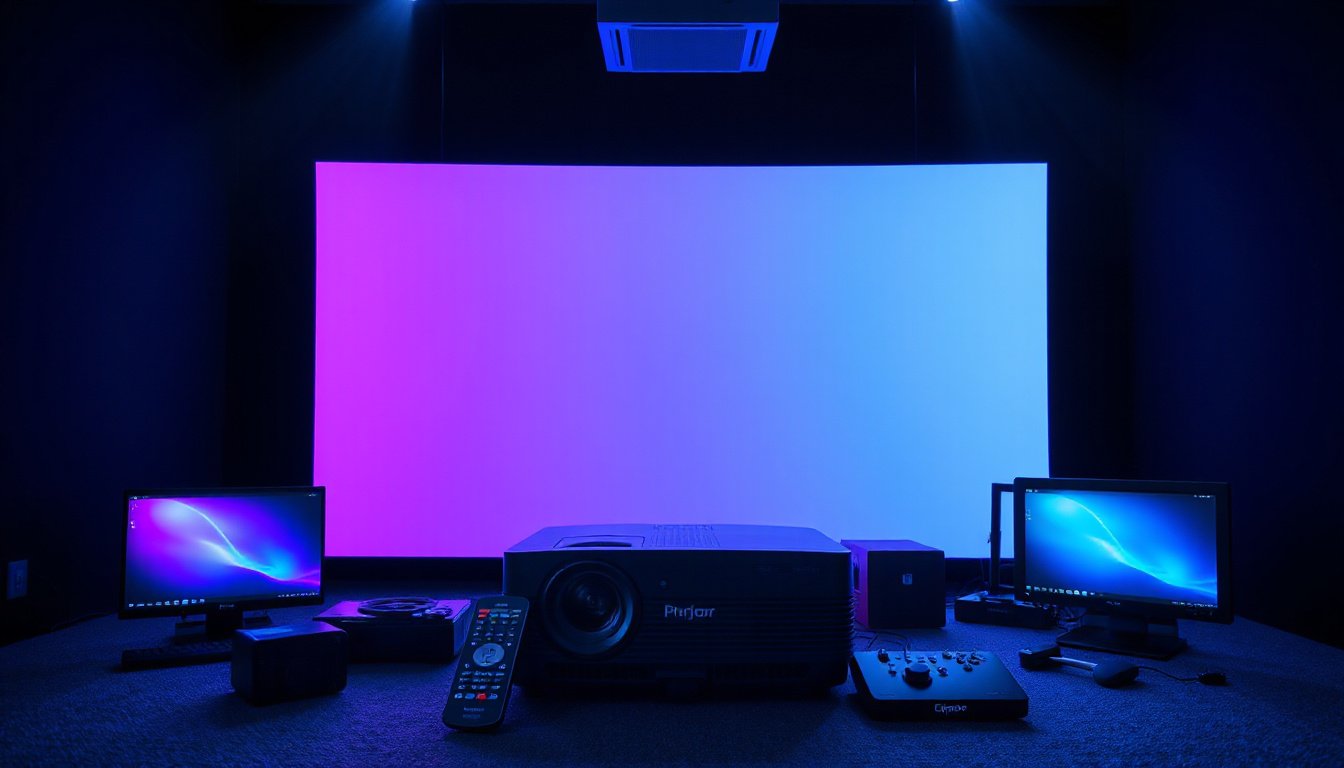
Projectors bring visuals to life with vibrant colors and expansive displays, transforming any space into a cinematic or presentation powerhouse. However, achieving a flawless projected image demands more than just turning on the device—it requires precise image adjustment and alignment. Whether setting up a home theater, a conference room, or a large venue, mastering projector image adjustment tools is key to unlocking the best possible visual experience. This guide explores essential tools and techniques to help you fine-tune your projector’s image with professional results.
Understanding the Importance of Image Adjustment
Improper alignment, inaccurate colors, or mismatched screen size can diminish the quality of your projection. Even a high-end projector cannot compensate for environmental factors such as ambient light, misalignment, or poor calibration. Image adjustment tools are designed to address these challenges by enabling you to calibrate and tweak settings, ensuring sharp, bright, and color-accurate images that captivate audiences.
Essential Tools for Projector Image Adjustment

1. Calibration Devices
-
Colorimeters: Devices like colorimeters are essential for adjusting and verifying color fidelity, brightness, and contrast. They detect the light and color output, allowing you to calibrate your projector to display accurate colors. While professional models can be costly, consumer-grade options are effective for home and small office use.
-
Digital Laser Measuring Devices: Understanding proper projector placement is fundamental. Laser measuring tools allow you to precisely measure the distance between the projector and the screen, which impacts image size and clarity based on the projector’s throw ratio.
2. Mounting and Stability Tools
- Tripods and Mounts: A stable, level surface or well-designed mounting system prevents image distortion caused by movement or misalignment. Adjustable tripods with smooth leveling capabilities help set optimal projector angles.
3. Software and Apps
-
Calibration Software: Many projector manufacturers provide free software that guides users through image calibration step-by-step. These programs assist in adjusting color temperature, gamma, contrast, and brightness with visual feedback.
-
Mobile Apps (e.g., Smart Align): Innovative tools like Digital Projection’s Smart Align app use your mobile phone’s camera to quickly align and color-match multiple projectors without requiring expensive third-party hardware. This wireless approach simplifies setup, especially for multi-projector installations.
4. Practical Maintenance Accessories
- Microfiber Cloths and Compressed Air: Keeping the projector lens and vents clean is essential to maintain clarity and prevent overheating. Regular cleaning with microfiber cloths and compressed air helps avoid dust buildup that can degrade image quality or damage the device.
5. Reference Materials
-
White Balance Reference Cards: These cards provide a neutral color point to correct and standardize color balance during calibration.
-
Projector User Manual: Manufacturer instructions often include model-specific recommendations critical for accurate setup and calibration.
Step-By-Step Approach to Image Adjustment
Step 1: Prepare Your Environment
Begin by controlling ambient lighting. Use a room with dimmable or blackout curtains to reduce reflections and glare. Opt for walls painted in neutral or dark matte colors to minimize unwanted light bounce that can wash out your image.
Step 2: Position Your Projector Accurately
Measure and set your projector at the recommended throw distance. Ensure the device is mounted securely with leveling tools to avoid keystone distortion or misalignment.
Step 3: Calibrate Using Tools and Software
Turn on your calibration software or use a colorimeter to begin adjusting brightness, contrast, and color temperature. Select your projector’s native resolution for best results. Use test patterns to verify sharpness, focus, and color accuracy.
Step 4: Fine-Tune and Document Settings
Adjust for subtle color hues, gamma, and brightness levels that best fit your viewing environment. Test multiple content types to ensure consistency. Record final settings for easy reference or future recalibration.
Step 5: Leverage Advanced Features for Complex Setups
For multi-projector displays or unique screen shapes, consider advanced software tools like “Multi Projection Simulator Pro” or “Advanced Align” which support edge blending, stacking, and geometric corrections to form seamless visual experiences.
Best Practices for Optimal Projection
- Always use surge protectors to safeguard projector hardware.
- Keep ventilation unobstructed to prevent overheating.
- Regularly clean lenses and filters to maintain image clarity.
- Adjust projector settings to suit the room’s lighting conditions, as no single preset fits every environment.
- Keep a calibration log to track changes and improve future adjustments.
Conclusion
Perfecting your projector’s image is a blend of the right tools, environment, and methodical calibration. By incorporating digital calibration devices, stable mounting solutions, software utilities, and practical maintenance accessories, you can significantly enhance image quality and viewing enjoyment. Mastering these projector image adjustment tools positions you to achieve the sharpness, color accuracy, and alignment that bring your projected visuals to life with stunning brilliance.
Elevate your projection setup today by investing in these essential image adjustment tools and techniques — transform any space into a perfectly calibrated visual masterpiece.