





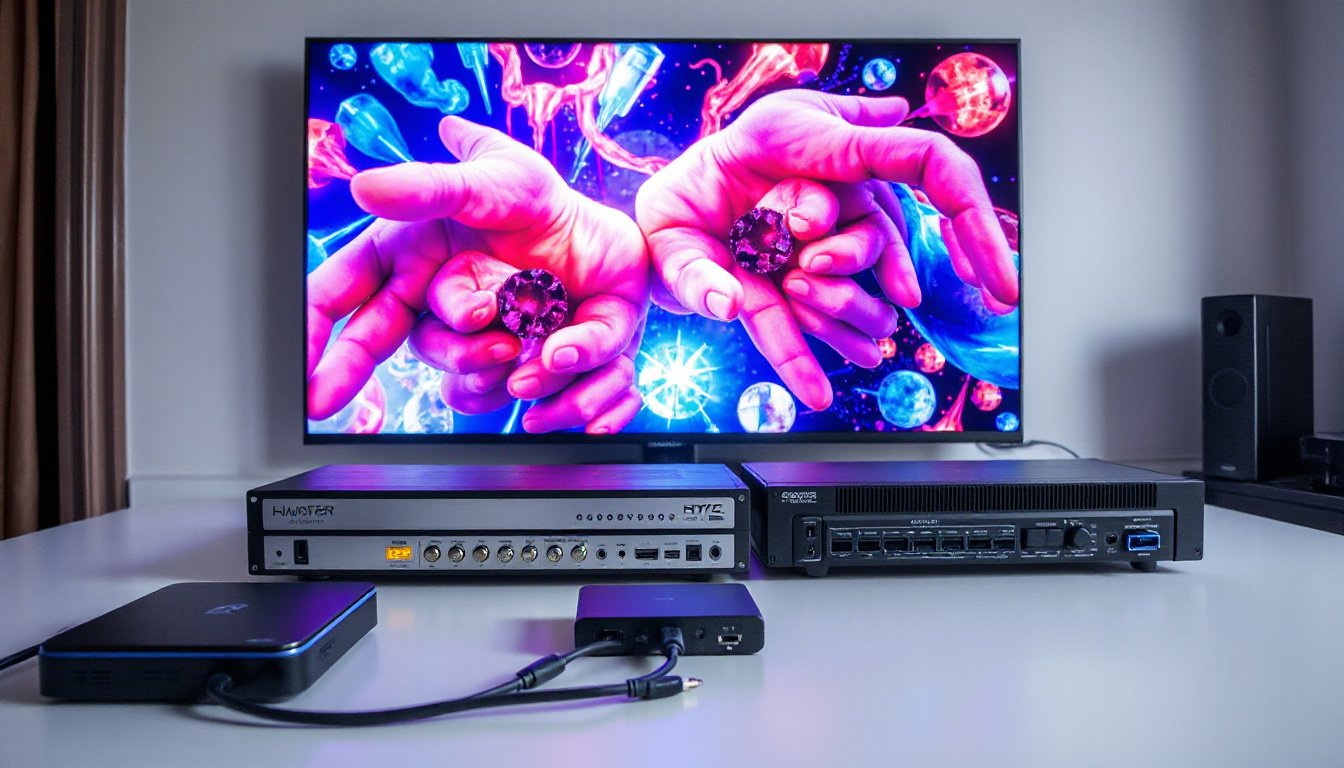
Projectors have become a popular choice for home theaters, business presentations, and entertainment setups. Often, users need to connect multiple source devices—such as Blu-ray players, gaming consoles, streaming devices, or laptops—to their projector and sometimes to additional displays like TVs or monitors. Managing these connections efficiently while maintaining optimal signal quality can be challenging without the right equipment. This is where HDMI splitters and switchers come into play. This guide explores their differences, practical uses, compatibility considerations, and tips on maximizing your projection experience.

Understanding HDMI Splitters and Switchers
What is an HDMI Splitter?
An HDMI splitter takes one HDMI input signal and duplicates it, sending the same output to two or more displays simultaneously. For instance, a single source like a Blu-ray player’s HDMI output can be split so the signal goes to both a projector and a TV at the same time.
- Use Case: Ideal when you want to display identical content on multiple screens.
- Important Note: Splitters do not change the resolution or format of the signal—they simply duplicate it.
What is an HDMI Switcher?
An HDMI switcher, conversely, allows multiple HDMI input sources to connect to a single HDMI output device. You can select which input feeds the projector or TV at any time.
- Use Case: Useful when you have several source devices but only one display or projector.
- Operating Mode: The user selects the active input either manually via buttons, a remote, or automatically, depending on the switcher features.
Benefits and Challenges of Using Splitters and Switchers with Projectors
Benefits
- Simplified Management: Instead of manually swapping cables, switches and splitters streamline source selection and display duplication.
- Shared Content: HDMI splitters enable mirroring the same content to a projector and TV, beneficial in presentations or comparative viewing.
- Remote Control Convenience: Many HDMI switches come with remote controls, making them easy to operate—especially helpful for less tech-savvy users.
Common Challenges
- Compatibility Issues: Using HDMI devices with varying resolution capabilities (e.g., 4K TV and 1080p projector) on the same splitter requires careful resolution management.
- Signal Stability: Some AV receivers act as splitters but may exhibit signal loss or cause devices like projectors to “search” repeatedly for input signals.
- Auto Power-On Quirks: Projectors with HDMI-CEC can power on automatically when detecting an HDMI signal, which may be undesirable—this can usually be disabled in projector settings.
- Choosing the Right Device: Passive splitters often cause problems; powered, high-quality splitters are recommended for stable performance.
Practical Advice for Using HDMI Splitters and Switchers with Projectors
1. Choose Powered HDMI Splitters
Powered HDMI splitters have their own power source, ensuring strong and reliable signal transmission to multiple displays without degradation. Passive splitters often fail at this task, leading to flickering, no signal, or interruptions.
2. Manage Resolution Compatibility
When connecting a projector and a TV with different native resolutions through a splitter, lock the output resolution to match the projector’s capability (e.g., 1080p) to avoid compatibility problems. Splitters only duplicate signals—they do not convert or adjust resolutions.
3. Disable HDMI-CEC to Prevent Unwanted Power-On
HDMI-CEC (Consumer Electronics Control) allows devices to control each other via HDMI. While convenient, projectors may turn on automatically when a signal is detected. Disable HDMI-CEC on the projector if this behavior is not desired.
4. Use Switchers for Multiple Sources
If you have multiple input devices such as gaming consoles, streaming boxes, or Blu-ray players, an HDMI switcher simplifies switching between sources using a remote or automatic detection, avoiding frequent cable changes.
5. Combine Switchers and Splitters for Complex Setups
For setups requiring multiple source selections and simultaneous displays (e.g., switching between gaming consoles and streaming devices, and outputting to both a projector and TV), use an HDMI switcher feeding into a splitter. This ensures you select the source and then distribute it to multiple screens.
Selecting Quality Splitters and Switchers
Some popular recommendations based on user experiences include:
- HDMI Switchers: Rocketfish RFG1185 4-in-1 HDMI switch is praised for quick and reliable switching suitable for projectors.
- HDMI Splitters: Models like the Monoprice powered "Blackbird" HDMI splitter provide stable duplication to multiple projectors or a projector and TV simultaneously.
When buying, ensure:
- The device supports HDMI 2.0 or higher if you plan to use 4K/UHD sources.
- It supports HDCP (High-bandwidth Digital Content Protection) compliance which is necessary for protected content.
- It has enough inputs/outputs for your setup.
- It carries remote control support or easy switching methods for convenient use.
Troubleshooting Tips
- Signal Loss or Searching: Confirm cables are high quality, powered splitters are used, and devices’ firmware is up to date.
- No Audio or Sync Issues: If audio fails when switching devices, check audio output settings on connected devices and ensure audio passthrough on the switcher/splitter.
- Unexpected Projector Behavior: Check physical buttons for stuck power switches and disable unnecessary HDMI functions like auto-wake via HDMI-CEC.
Summary
Effectively using HDMI splitters and switchers can transform your projector installation, providing convenient source management and versatile display arrangements. To maximize success:
- Use powered HDMI splitters for multiple display needs.
- Employ HDMI switchers for managing various input devices.
- Manage resolution settings to ensure compatibility.
- Disable HDMI-CEC if undesired projector auto power-on occurs.
- Invest in quality, reliable devices with the features you need.
By understanding the roles and best practices, you can enjoy seamless transitions between devices and displays, enhancing the projection experience for both casual viewing and professional use.
This guide aims to assist projector users in optimizing their setups by carefully selecting and using splitters and switchers to match their technical and practical needs.