





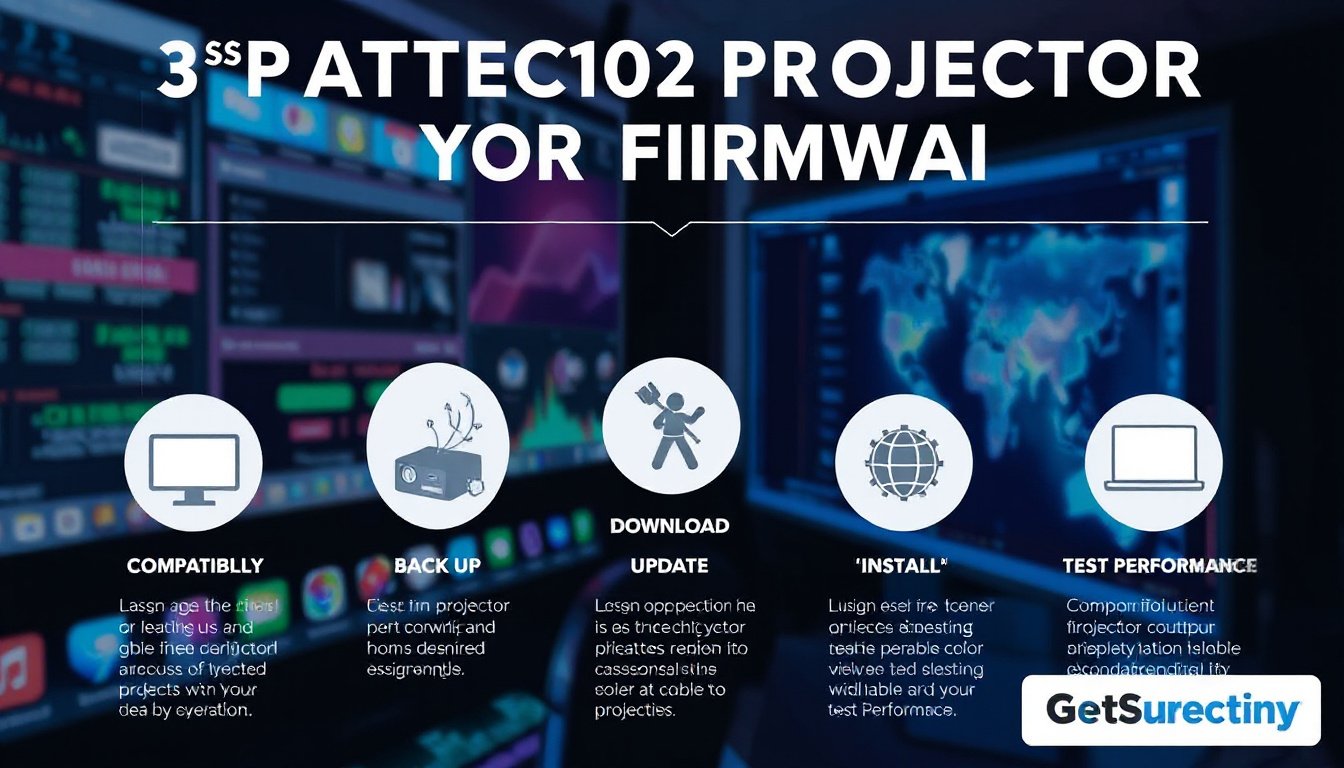
Whether you’re using a projector for home entertainment, business presentations, or specialized applications, keeping your device’s firmware up to date is essential to unlock peak performance, maintain compatibility, and ensure security. Firmware updates often fix bugs, enhance features, improve energy efficiency, and even add new capabilities. However, updating projector firmware can be a delicate process that requires careful attention to detail to avoid pitfalls like device malfunction or “bricking.” Below is a comprehensive guide synthesizing expert advice and best practices to help you update your projector firmware safely and effectively.
1. Understand Your Projector’s Model and Current Firmware Version
Before downloading or applying any firmware update, it is critical to accurately identify your projector’s exact model number and its current firmware version. Different models—even across the same brand—may have uniquely tailored firmware to ensure precise compatibility.
- Locate the model number by checking the projector’s back panel, underside label, or within the on-screen menu under sections such as Info, System, or About.
- Check current firmware version in a similar system information menu.
- Record these details along with the manufacturer’s name and the date of this check. This will help you avoid downloading incorrect or incompatible firmware.
If you have difficulty finding this data, consult the user manual or the manufacturer’s online support resources.
2. Download Firmware Only From Official Manufacturer Sources
To reduce risks such as corrupted files or malicious software, always download firmware updates from the official website or authorized support portals provided by the projector’s manufacturer.
- Visit the manufacturer’s support or download page and enter your exact projector model.
- Download the latest firmware that matches your model and existing firmware version.
- Review release notes or update descriptions carefully to understand the improvements and any prerequisites.
- Use a stable internet connection to avoid damaged or incomplete downloads.
- Store the firmware files in a dedicated folder, ideally on a clean, formatted USB drive if the update requires manual transfer.
3. Prepare Your Projector and Environment Properly
To maximize the success rate of firmware installation:
- Connect your projector to a reliable network — either via Ethernet cable or a strong WiFi connection. Wired connections typically provide greater stability during downloads.
- Ensure the projector is connected to a stable power supply to prevent interruptions during the update. Avoid updating during storms or when power fluctuations are frequent.
- Back up important settings or configurations if your projector allows. Some updates might reset settings.
4. Follow Manufacturer’s Update Instructions Meticulously
Each manufacturer may have specific procedures or tools for firmware updates, including:
- Navigating to the Settings > Firmware Update or equivalent menu in the projector.
- Initiating updates via USB drive or over-the-air (OTA) network connections.
- Observing on-screen prompts and waiting patiently during installation without powering off or unplugging the device.
- Do not interrupt the update process, as power loss or disconnection can brick the projector.
5. Verify Successful Firmware Update Completion
After the update process finishes:
- Access the system information menu again to confirm the new firmware version number.
- Test key projector functions—image quality, connectivity, input response—to ensure everything operates smoothly.
- If problems arise, consult the support documentation or contact customer support before attempting another update.
Additional Expert Tips and Precautions

- Modular and incremental updates: If multiple firmware versions are available, apply them sequentially rather than skipping intermediate updates.
- Avoid third-party firmware or unofficial patches to reduce security risks.
- Stay informed about firmware development trends, as new projectors increasingly incorporate complex features like IoT integration, 4K/8K support, and interactive functions, necessitating more sophisticated and frequent updates.
- Security considerations: Modern projector firmware often includes encryption and protections; updates may patch vulnerabilities.
- In case of failure, do not attempt DIY recovery unless guided by official support channels, as improper procedures can permanently damage your projector.
Conclusion
Projector firmware updates are vital for maintaining and unlocking your device’s full potential, but they must be approached with knowledge and caution. Following the best practices outlined—accurate model identification, reliable firmware sourcing, proper preparation, careful installation, and verification—helps ensure a smooth and successful update experience. Staying current with firmware also means benefiting from ongoing improvements in performance, security, and feature sets that modern projectors increasingly depend upon.
Keeping your projector’s firmware updated responsibly will guarantee clearer images, enhanced reliability, and a longer device lifespan, truly unlocking your projector’s performance capabilities.
For detailed brand-specific instructions or troubleshooting, always refer to your projector manufacturer’s official resources.